Ansible Playbook to deploy AVI Controller and Service Engines

After my first blog post about Software defined Load Balancing with AVI Networks, here is how to automatically deploy AVI controller and services engines via Ansible.

Here are the links to my repositories; AVI Vagrant environment: https://github.com/berndonline/avi-lab-vagrant and AVI Ansible Playbook: https://github.com/berndonline/avi-lab-provision

Make sure that your vagrant environment is running,

berndonline@lab:~/avi-lab-vagrant$ vagrant status
Current machine states:

avi-controller-1          running (libvirt)
avi-controller-2          running (libvirt)
avi-controller-3          running (libvirt)
avi-se-1                  running (libvirt)
avi-se-2                  running (libvirt)

This environment represents multiple VMs. The VMs are all listed
above with their current state. For more information about a specific
VM, run `vagrant status NAME`.

I needed to modify the ansible.cfg to integrate a filter plugin:

[defaults]
inventory = ./.vagrant/provisioners/ansible/inventory/vagrant_ansible_inventory
host_key_checking=False

library = /home/berndonline/avi-lab-provision/lib
filter_plugins = /home/berndonline/avi-lab-provision/lib/filter_plugins

The controller installation is actually very simple and I got it from the official AVI ansible role they created, I added a second role to check ones the controller nodes are successfully booted:

---
- hosts: avi-controller
  user: '{{ ansible_ssh_user }}'
  gather_facts: "true"
  roles:
    - {role: ansible-role-avicontroller, become: true}
    - {role: avi-post-controller, become: false}

There’s one important thing to know before we run the playbook. When you have an AVI subscription you get custom container images with a predefined default password which makes it easier for you to do the cluster setup fully automated. You find the default password variable in group_vars/all.yml there you set as well if the password should be changed.

Let’s execute the ansible playbook, it takes a bit time for the three nodes to boot up:

berndonline@lab:~/avi-lab-vagrant$ ansible-playbook ../avi-lab-provision/playbooks/avi-controller-install.yml

PLAY [avi-controller] *********************************************************************************************************************************************

TASK [Gathering Facts] ********************************************************************************************************************************************
ok: [avi-controller-3]
ok: [avi-controller-2]
ok: [avi-controller-1]

TASK [ansible-role-avicontroller : Avi Controller | Deployment] ***************************************************************************************************
included: /home/berndonline/avi-lab-provision/roles/ansible-role-avicontroller/tasks/docker/main.yml for avi-controller-1, avi-controller-2, avi-controller-3

TASK [ansible-role-avicontroller : Avi Controller | Services | systemd | Check if Avi Controller installed] *******************************************************
included: /home/berndonline/avi-lab-provision/roles/ansible-role-avicontroller/tasks/docker/services/systemd/check.yml for avi-controller-1, avi-controller-2, avi-controller-3

TASK [ansible-role-avicontroller : Avi Controller | Check if Avi Controller installed] ****************************************************************************
ok: [avi-controller-3]
ok: [avi-controller-2]
ok: [avi-controller-1]

TASK [ansible-role-avicontroller : Avi Controller | Services | init.d | Check if Avi Controller installed] ********************************************************
skipping: [avi-controller-1]
skipping: [avi-controller-2]
skipping: [avi-controller-3]

TASK [ansible-role-avicontroller : Avi Controller | Check minimum requirements] ***********************************************************************************
included: /home/berndonline/avi-lab-provision/roles/ansible-role-avicontroller/tasks/docker/requirements.yml for avi-controller-1, avi-controller-2, avi-controller-3

TASK [ansible-role-avicontroller : Avi Controller | Requirements | Check for docker] ******************************************************************************
ok: [avi-controller-2]
ok: [avi-controller-3]
ok: [avi-controller-1]

...

TASK [avi-post-controller : wait for cluster nodes up] ************************************************************************************************************
FAILED - RETRYING: wait for cluster nodes up (30 retries left).

...

FAILED - RETRYING: wait for cluster nodes up (7 retries left).
FAILED - RETRYING: wait for cluster nodes up (8 retries left).
FAILED - RETRYING: wait for cluster nodes up (7 retries left).
ok: [avi-controller-2]
ok: [avi-controller-3]
ok: [avi-controller-1]

PLAY RECAP ********************************************************************************************************************************************************
avi-controller-1           : ok=36   changed=6    unreachable=0    failed=0
avi-controller-2           : ok=35   changed=5    unreachable=0    failed=0
avi-controller-3           : ok=35   changed=5    unreachable=0    failed=0

berndonline@lab:~/avi-lab-vagrant$

We are not finished yet and need to set basic settings like NTP and DNS, and need to configure the AVI three node controller cluster with another playbook:

---
- hosts: localhost
  connection: local
  roles:
    - {role: avi-cluster-setup, become: false}
    - {role: avi-change-password, become: false, when: avi_change_password == true}

The first role uses the REST API to do the configuration changes and requires the AVI ansible sdk role and for these reason it is very useful using the custom subscription images because you know the default password otherwise you need to modify the main setup.json file.

Let’s run the AVI cluster setup playbook:

berndonline@lab:~/avi-lab-vagrant$ ansible-playbook ../avi-lab-provision/playbooks/avi-cluster-setup.yml

PLAY [localhost] **************************************************************************************************************************************************

TASK [Gathering Facts] ********************************************************************************************************************************************
ok: [localhost]

TASK [ansible-role-avisdk : Checking if avisdk python library is present] *****************************************************************************************
ok: [localhost] => {
    "msg": "Please make sure avisdk is installed via pip. 'pip install avisdk --upgrade'"
}

TASK [avi-cluster-setup : set AVI dns and ntp facts] **************************************************************************************************************
ok: [localhost]

TASK [avi-cluster-setup : set AVI cluster facts] ******************************************************************************************************************
ok: [localhost]

TASK [avi-cluster-setup : configure ntp and dns controller nodes] *************************************************************************************************
changed: [localhost]

TASK [avi-cluster-setup : configure AVI cluster] ******************************************************************************************************************
changed: [localhost]

TASK [avi-cluster-setup : wait for cluster become active] *********************************************************************************************************
FAILED - RETRYING: wait for cluster become active (30 retries left).
FAILED - RETRYING: wait for cluster become active (29 retries left).
FAILED - RETRYING: wait for cluster become active (28 retries left).

...

FAILED - RETRYING: wait for cluster become active (14 retries left).
FAILED - RETRYING: wait for cluster become active (13 retries left).
FAILED - RETRYING: wait for cluster become active (12 retries left).
ok: [localhost]

TASK [avi-change-password : change default admin password on cluster build when subscription] *********************************************************************
skipping: [localhost]

PLAY RECAP ********************************************************************************************************************************************************
localhost                  : ok=7    changed=2    unreachable=0    failed=0

berndonline@lab:~/avi-lab-vagrant$

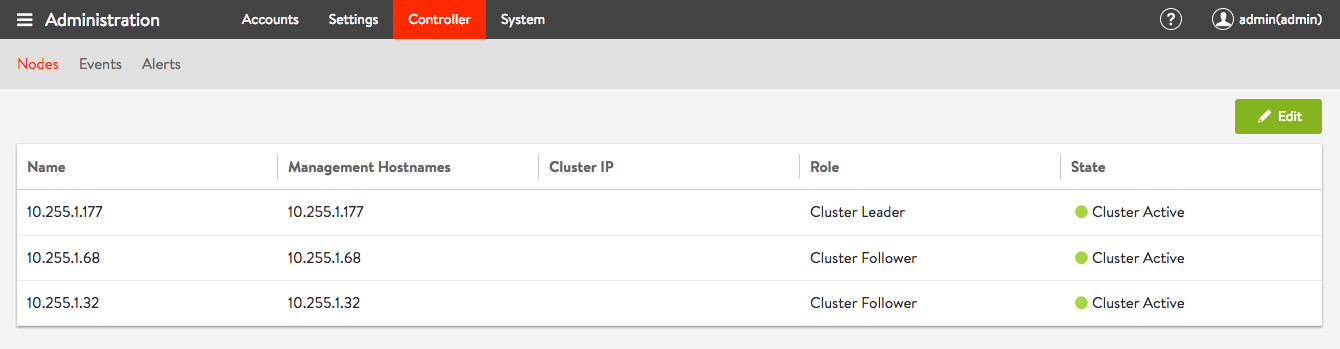
We can check in the web console to see if the cluster is booted and correctly setup:
Last but not least we need the ansible playbook for the AVI service engines installation which relies on the official AVI ansible se role:

---
- hosts: avi-se
  user: '{{ ansible_ssh_user }}'
  gather_facts: "true"
  roles:
    - {role: ansible-role-avise, become: true}

Let’s run the playbook for the service engines installation:

berndonline@lab:~/avi-lab-vagrant$ ansible-playbook ../avi-lab-provision/playbooks/avi-se-install.yml

PLAY [avi-se] *****************************************************************************************************************************************************

TASK [Gathering Facts] ********************************************************************************************************************************************
ok: [avi-se-2]
ok: [avi-se-1]

TASK [ansible-role-avisdk : Checking if avisdk python library is present] *****************************************************************************************
ok: [avi-se-1] => {
    "msg": "Please make sure avisdk is installed via pip. 'pip install avisdk --upgrade'"
}
ok: [avi-se-2] => {
    "msg": "Please make sure avisdk is installed via pip. 'pip install avisdk --upgrade'"
}

TASK [ansible-role-avise : Avi SE | Set facts] ********************************************************************************************************************
skipping: [avi-se-1]
skipping: [avi-se-2]

TASK [ansible-role-avise : Avi SE | Deployment] *******************************************************************************************************************
included: /home/berndonline/avi-lab-provision/roles/ansible-role-avise/tasks/docker/main.yml for avi-se-1, avi-se-2

TASK [ansible-role-avise : Avi SE | Check minimum requirements] ***************************************************************************************************
included: /home/berndonline/avi-lab-provision/roles/ansible-role-avise/tasks/docker/requirements.yml for avi-se-1, avi-se-2

TASK [ansible-role-avise : Avi SE | Requirements | Check for docker] **********************************************************************************************
ok: [avi-se-2]
ok: [avi-se-1]

TASK [ansible-role-avise : Avi SE | Requirements | Set facts] *****************************************************************************************************
ok: [avi-se-1]
ok: [avi-se-2]

TASK [ansible-role-avise : Avi SE | Requirements | Validate Parameters] *******************************************************************************************
ok: [avi-se-1] => {
    "changed": false,
    "msg": "All assertions passed"
}
ok: [avi-se-2] => {
    "changed": false,
    "msg": "All assertions passed"
}

...

TASK [ansible-role-avise : Avi SE | Services | systemd | Start the service since it's not running] ****************************************************************
changed: [avi-se-1]
changed: [avi-se-2]

RUNNING HANDLER [ansible-role-avise : Avi SE | Services | systemd | Daemon reload] ********************************************************************************
ok: [avi-se-2]
ok: [avi-se-1]

RUNNING HANDLER [ansible-role-avise : Avi SE | Services | Restart the avise service] ******************************************************************************
changed: [avi-se-2]
changed: [avi-se-1]

PLAY RECAP ********************************************************************************************************************************************************
avi-se-1                   : ok=47   changed=7    unreachable=0    failed=0
avi-se-2                   : ok=47   changed=7    unreachable=0    failed=0

berndonline@lab:~/avi-lab-vagrant$

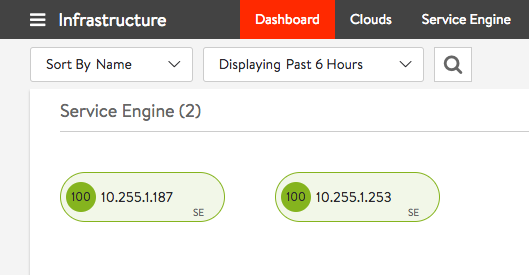
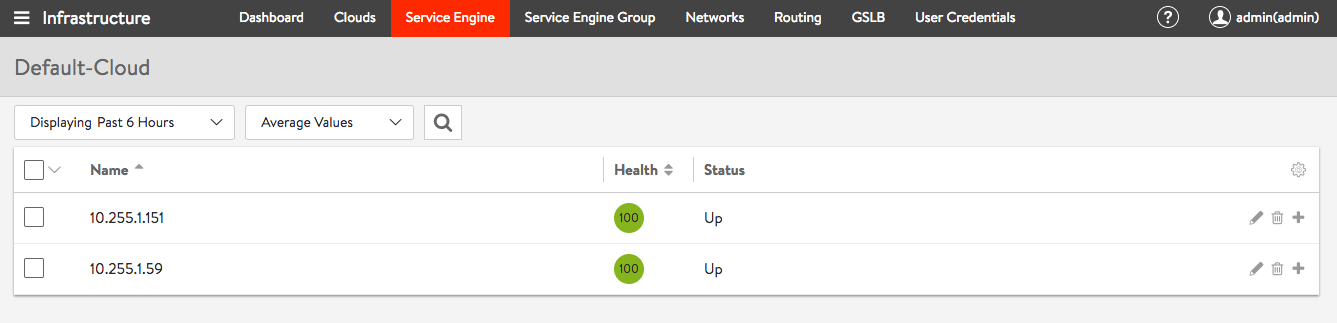
After a few minutes you see the AVI service engines automatically register on the controller cluster and you are ready start configuring the detailed load balancing configuration:
Please share your feedback and leave a comment.
Software defined Load Balancing with AVI Networks

Throughout my career I have used various load balancing platforms, from commercial products like F5 or Citrix NetScaler to open source software like HA proxy. All of them do their job of balancing traffic between servers but the biggest problem is the scalability: yes you can deploy more load balancers but the config is static bound to the appliance.

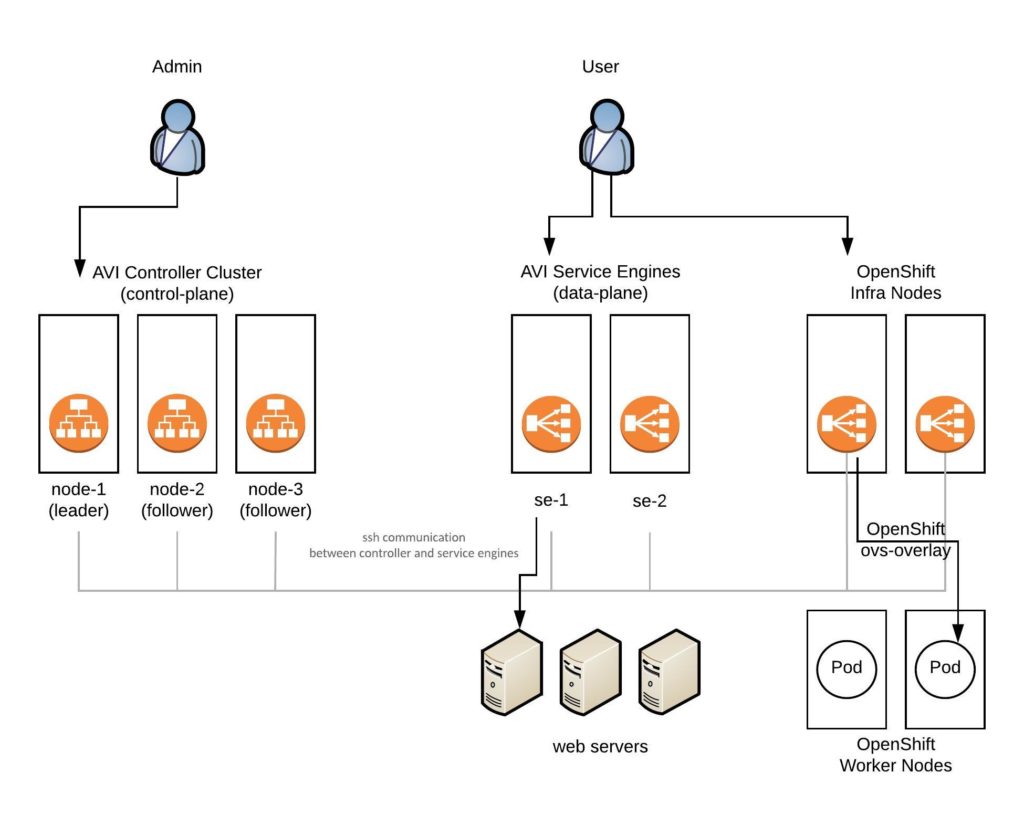
AVI Networks has a very interesting concept of moving away from the traditional idea of load balancing and solving this problem by decoupling the control-plane from the data-plane which makes the load balancing Service Engines basically just forward traffic and can be more easily scaled-out when needed. Another nice advantage is that these Service Engines are container based and can run on basically every type of infrastructure from Bare Metal, on VMs to modern containerized platforms like Kubernetes or OpenShift:

All the AVI components are running as container image on any type of infrastructure or platform architecture which makes the deployment very easy to run on-premise or cloud systems.

The Service Engines on Hypervisor or Base-metal servers need network cards which support Intel’s DPDK for better packet forwarding. Have a look at the AVI linux server deployment guide: https://avinetworks.com/docs/latest/installing-avi-vantage-for-a-linux-server-cloud/

Here now, is a basic step-by-step guide on how to install the AVI Vantage Controller and additional Service Engines. Have a look at the AVI Knowledge-Base where the install is explained in detail:  https://avinetworks.com/docs/latest/installing-avi-vantage-for-a-linux-server-cloud/

Here is the link to my Vagrant environment: https://github.com/berndonline/avi-lab-vagrant

Let’s start with the manual AVI Controller installation:

[vagrant@localhost ~]$ sudo ./avi_baremetal_setup.py
AviVantage Version Tag: 17.2.11-9014
Found disk with largest capacity at [/]

Welcome to Avi Initialization Script

Pre-requisites: This script assumes the below utilities are installed:
                  docker (yum -y install docker/apt-get install docker.io)
Supported Vers: OEL - 6.5,6.7,6.9,7.0,7.1,7.2,7.3,7.4 Centos/RHEL - 7.0,7.1,7.2,7.3,7.4, Ubuntu - 14.04,16.04

Do you want to run Avi Controller on this Host [y/n] y
Do you want to run Avi SE on this Host [y/n] n
Enter The Number Of Cores For Avi Controller. Range [4, 4] 4
Please Enter Memory (in GB) for Avi Controller. Range [12, 7]
Please enter directory path for Avi Controller Config (Default [/opt/avi/controller/data/])
Please enter disk size (in GB) for Avi Controller Config (Default [30G]) 10
Do you have separate partition for Avi Controller Metrics ? If yes, please enter directory path, else leave it blank
Do you have separate partition for Avi Controller Client Logs ? If yes, please enter directory path, else leave it blank
Please enter Controller IP (Default [10.255.1.232])
Enter the Controller SSH port. (Default [5098])
Enter the Controller system-internal portal port. (Default [8443])
AviVantage Version Tag: 17.2.11-9014
Run SE           : No
Run Controller   : Yes
Controller Cores : 4
Memory(GB)       : 7
Disk(GB)         : 10
Controller IP    : 10.255.1.232
Disabling Avi Services...
Loading Avi CONTROLLER Image. Please Wait..
Installation Successful. Starting Services..
[vagrant@localhost ~]$
[vagrant@localhost ~]$ sudo systemctl start avicontroller

Or as a single command without interactive mode:

[vagrant@localhost ~]$ sudo ./avi_baremetal_setup.py -c -cd 10 -cc 4 -cm 7 -i 10.255.1.232
AviVantage Version Tag: 17.2.11-9014
Found disk with largest capacity at [/]
AviVantage Version Tag: 17.2.11-9014
Run SE           : No
Run Controller   : Yes
Controller Cores : 4
Memory(GB)       : 7
Disk(GB)         : 10
Controller IP    : 10.255.1.232
Disabling Avi Services...
Loading Avi CONTROLLER Image. Please Wait..
Installation Successful. Starting Services..
[vagrant@localhost ~]$
[vagrant@localhost ~]$ sudo systemctl start avicontroller

The installer basically installed a container image on the server which runs the AVI Controller:

[vagrant@localhost ~]$ sudo docker ps
CONTAINER ID        IMAGE                                                 COMMAND                  CREATED              STATUS              PORTS                                                                                                                                    NAMES
c689435f74fd        avinetworks/controller:17.2.11-9014                   "/opt/avi/scripts/do…"   About a minute ago   Up About a minute   0.0.0.0:80->80/tcp, 0.0.0.0:443->443/tcp, 0.0.0.0:5054->5054/tcp, 0.0.0.0:5098->5098/tcp, 0.0.0.0:8443->8443/tcp, 0.0.0.0:161->161/udp   avicontroller
[vagrant@localhost ~]$

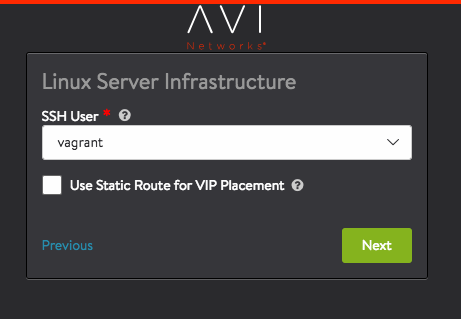
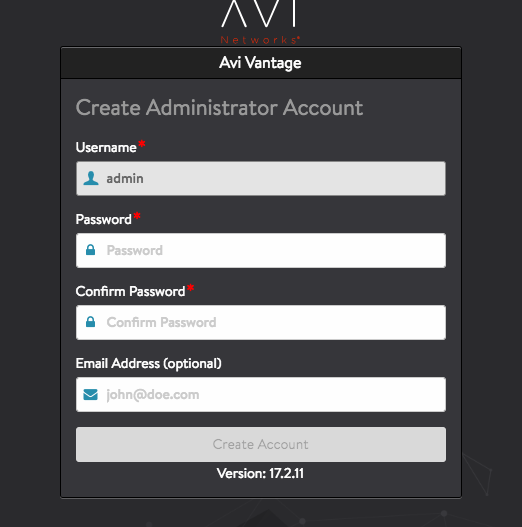
Next you can connect via the web console to change the password and finalise the configuration to configure DNS, NTP and SMTP:

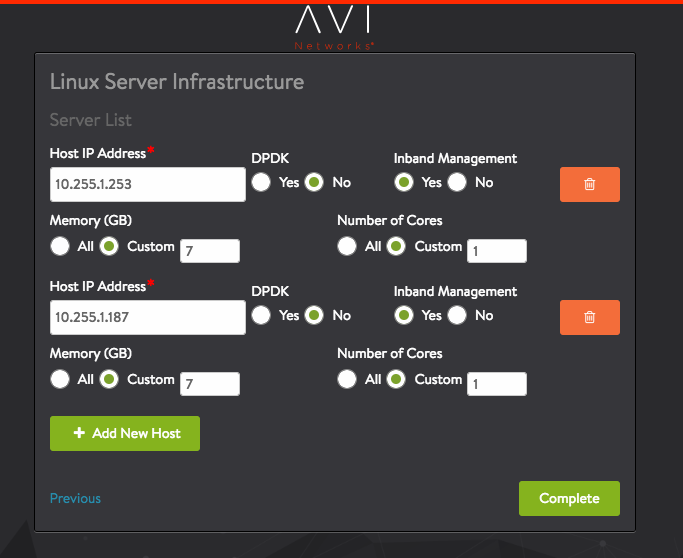
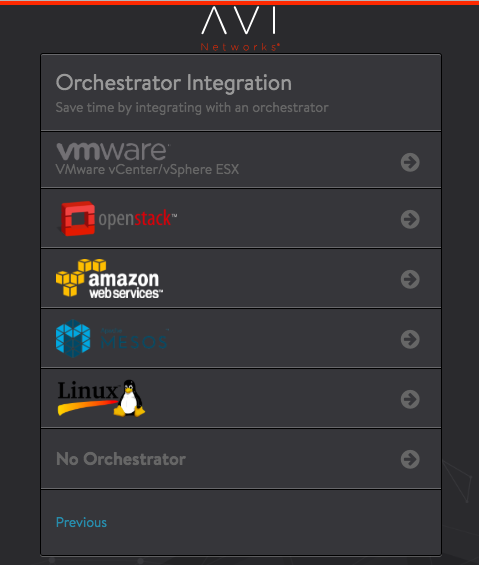
When you get to the menu Orchestrator integration you can put in the details for the controller to install additional service engines:

In the meantime the AVI Controller installs the specified Service Engines in the background, which automatically appear once this is completed under the infrastructure menu:

Like with the AVI Controller, the Service Engines run as container image:

[vagrant@localhost ~]$ sudo docker ps
CONTAINER ID        IMAGE                                         COMMAND                  CREATED             STATUS              PORTS               NAMES
2c6b207ed376        avinetworks/se:17.2.11-9014                   "/opt/avi/scripts/do…"   51 seconds ago      Up 50 seconds                           avise
[vagrant@localhost ~]$

The next article will be about automatically deploying the AVI Controller and Service Engines via Ansible, and looking into how to integrate AVI with OpenShift.

Please share your feedback and leave a comment.
NetBox Open Source DCIM and IPAM tool

I wanted to share some information about an open source tool I have found some time ago which helps you to keep track of your infrastructure assets and configuration items. The name is NetBox which is an DCIM (Datacenter infrastructure management) and IPAM (IP address management) tool. NetBox was started by the network engineering team from DigitalOcean, specifically to address the needs of network and infrastructure engineers.

We all know that documentation is something no one wants to do, and no one has time for. What makes NetBox interesting is that not only does it focus on infrastructure documentation with a clean web console, it also comes with a API to push changes via the API , or use NetBox as dynamic inventory for Ansible.

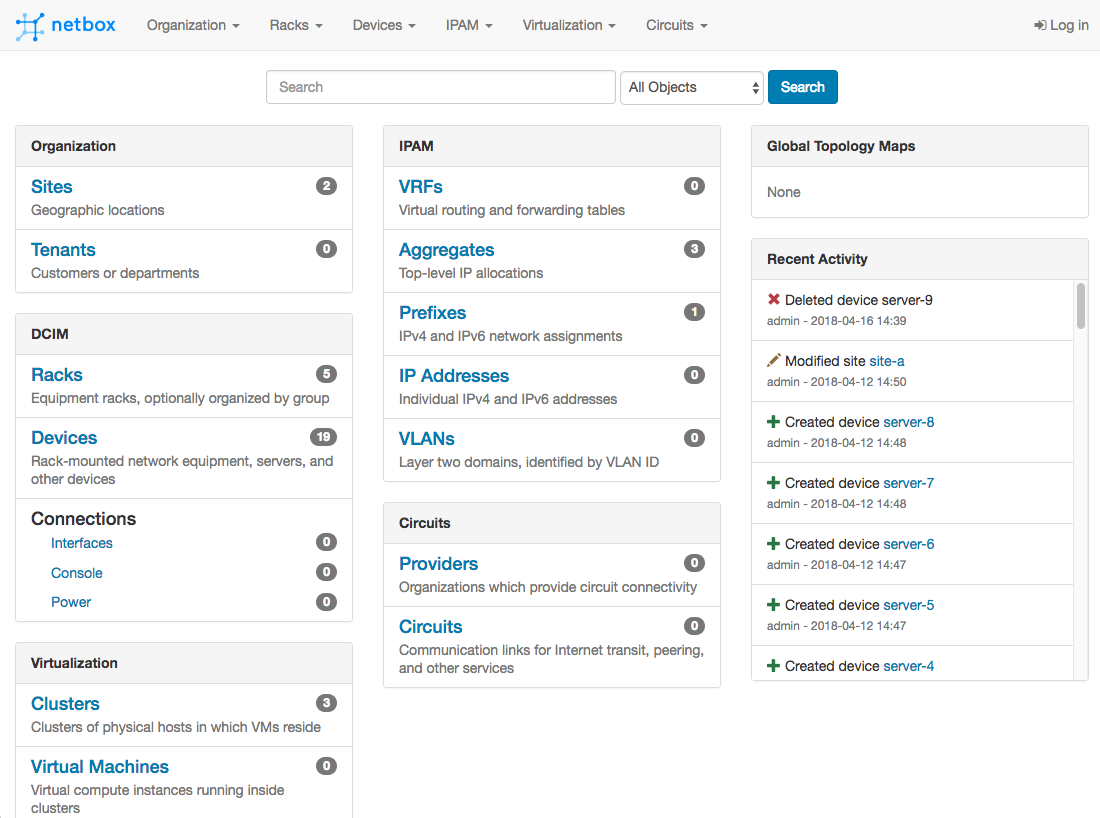
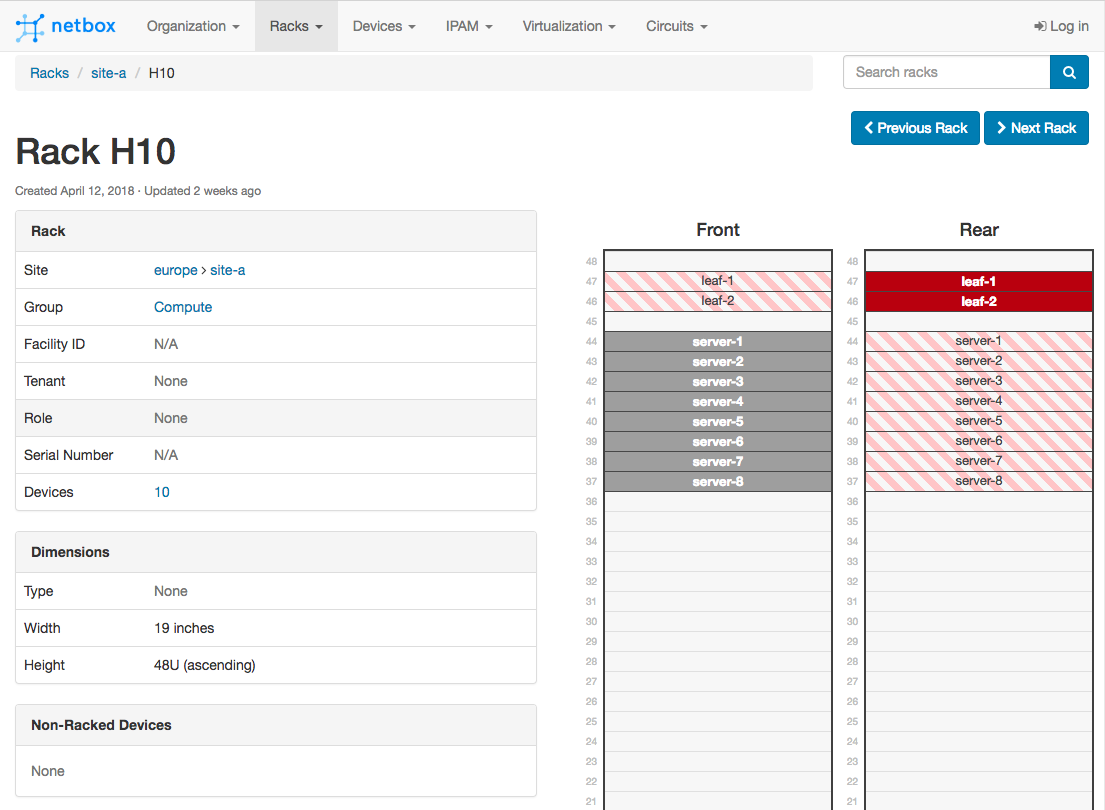
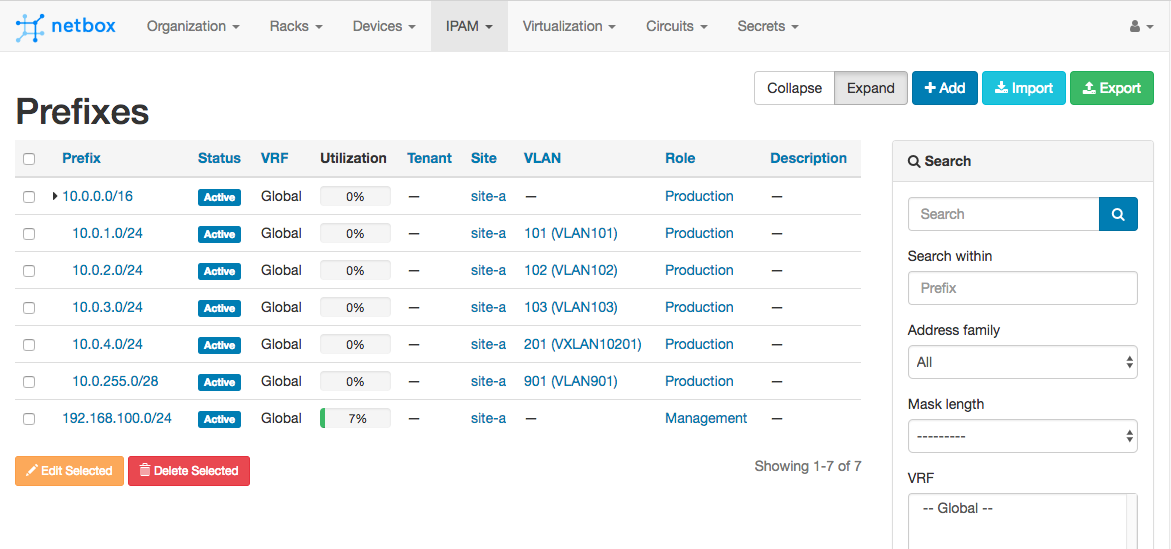
Here a few screenshots showing the look and feel from NetBox:

The rack overview:

The IPAM module:

Here is an example how to add a device via the REST API, very useful if you use ZTP (zero touch provisioning) and add your switches or servers automatically to NetBox or in your automation scripts when you deploy configurations:

vagrant@netbox:~$ curl -X POST -H "Authorization: Token fde02a67ca0c248bf5695bbf5cd56975add33655" -H "Content-Type: application/json" -H "Accept: application/json; indent=4" http://localhost:80/api/dcim/devices/ --data '{ "nae": "server-9", "display_name": "server-9", "device_type": 5, "device_role": 8 , "site": 1 }'
{
    "id": 21,
    "name": "server-9",
    "device_type": 5,
    "device_role": 8,
    "tenant": null,
    "platform": null,
    "serial": "",
    "asset_tag": null,
    "site": 1,
    "rack": null,
    "position": null,
    "face": null,
    "status": 1,
    "primary_ip4": null,
    "primary_ip6": null,
    "cluster": null,
    "virtual_chassis": null,
    "vc_position": null,
    "vc_priority": null,
    "comments": "",
    "created": "2018-04-16",
    "last_updated": "2018-04-16T14:40:47.787862Z"
}
vagrant@netbox:~$

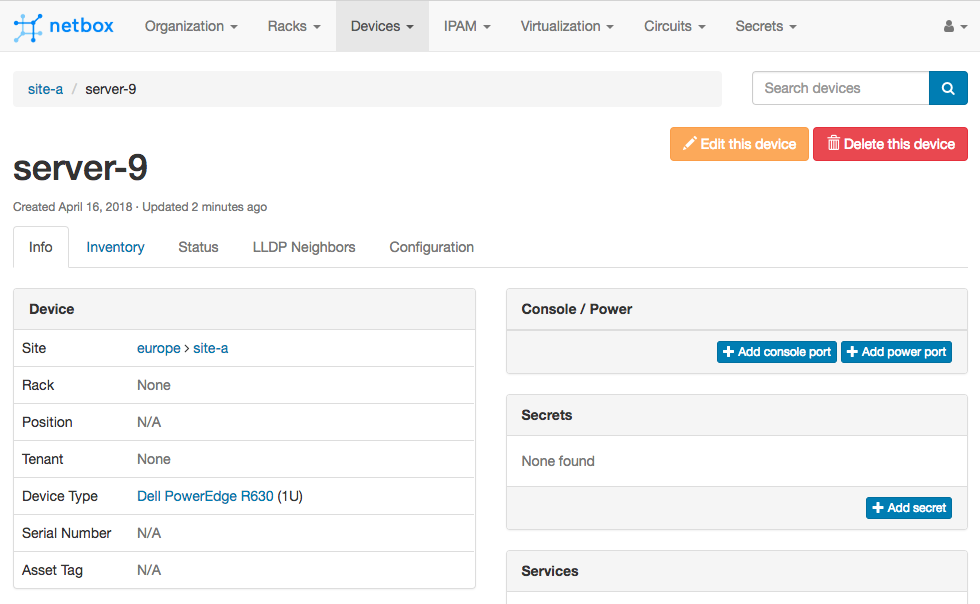
In the web console you see the device I have just added via the REST API:

On the main NetBox Github repository page you find links for a Ansible Role or Vagrant environment.

You can use NetBox as Ansible dynamic inventory and pull out hosts information dynamically when running playbooks. Check out the Github repository I have found.

sudo apt-get install python-setuptools ansible -y
git clone https://github.com/AAbouZaid/netbox-as-ansible-inventory.git
cd ./netbox-as-ansible-inventory/
pip install -r ./requirements.txt
sudo python setup.py install

Usage with Ansible playbook

ansible-playbook -i netbox.py ./site.yml

Please share your feedback and leave a comment.
Cumulus Networks Case Study

Cumulus Networks published a new case study about my work with them on my recent datacenter network rebuild using Cumulus Linux on Dell Open Networking switches and about how we have used Cumulus NetQ as fabric validation system.

Have a look and read the case study here:

Link: https://cumulusnetworks.com/customers/smartgames-technologies/

Cumulus also published a press release a few weeks ago with one of my quotes about NetQ I made when we were working on the case study.

“With NetQ, we can run small check commands and see what really is going on in our network,” said Bernd Malmqvist, Tech Lead Systems Operations at SmartGames Technologies. “The benefits to us are early alerting and validating the entire state of the fabric. Monitoring is one thing, but with NetQ, the knowledge is instant. NetQ is really unique; it’s a tool that tells us exactly what is wrong in our environment, and the insight to know where an issue is stemming from.”

You can read the full press release read here:

https://cumulusnetworks.com/about/press-releases/cumulus-networks-bolsters-cumulus-netq-kubernetes-integration-provide-network-operators-actionable-insight-container-networking/

Internet Edge and WAN Routing with Cumulus Linux

With this article I wanted to focus on something different than the usual spine and leaf topology and talk about datacenter edge routing.

I was using Cisco routers for many years for Internet Edge and WAN connectivity. The problem with using a vendor like Cisco is the price tag you have to pay and there still might a reason for it to spend the money. But nowadays you get leased-lines handed over as normal Ethernet connection and using a dedicated routers maybe not always necessary if you are not getting too crazy with BGP routing or quality of service.

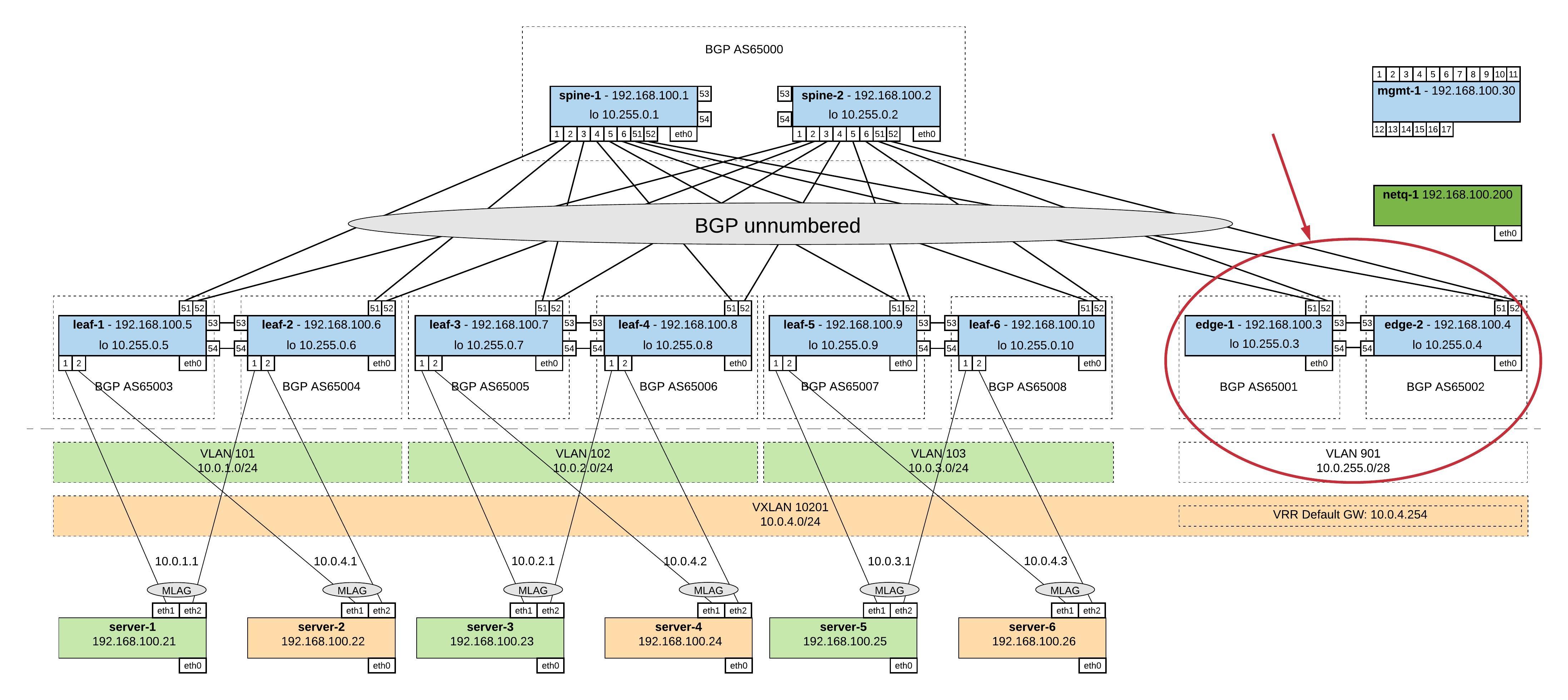
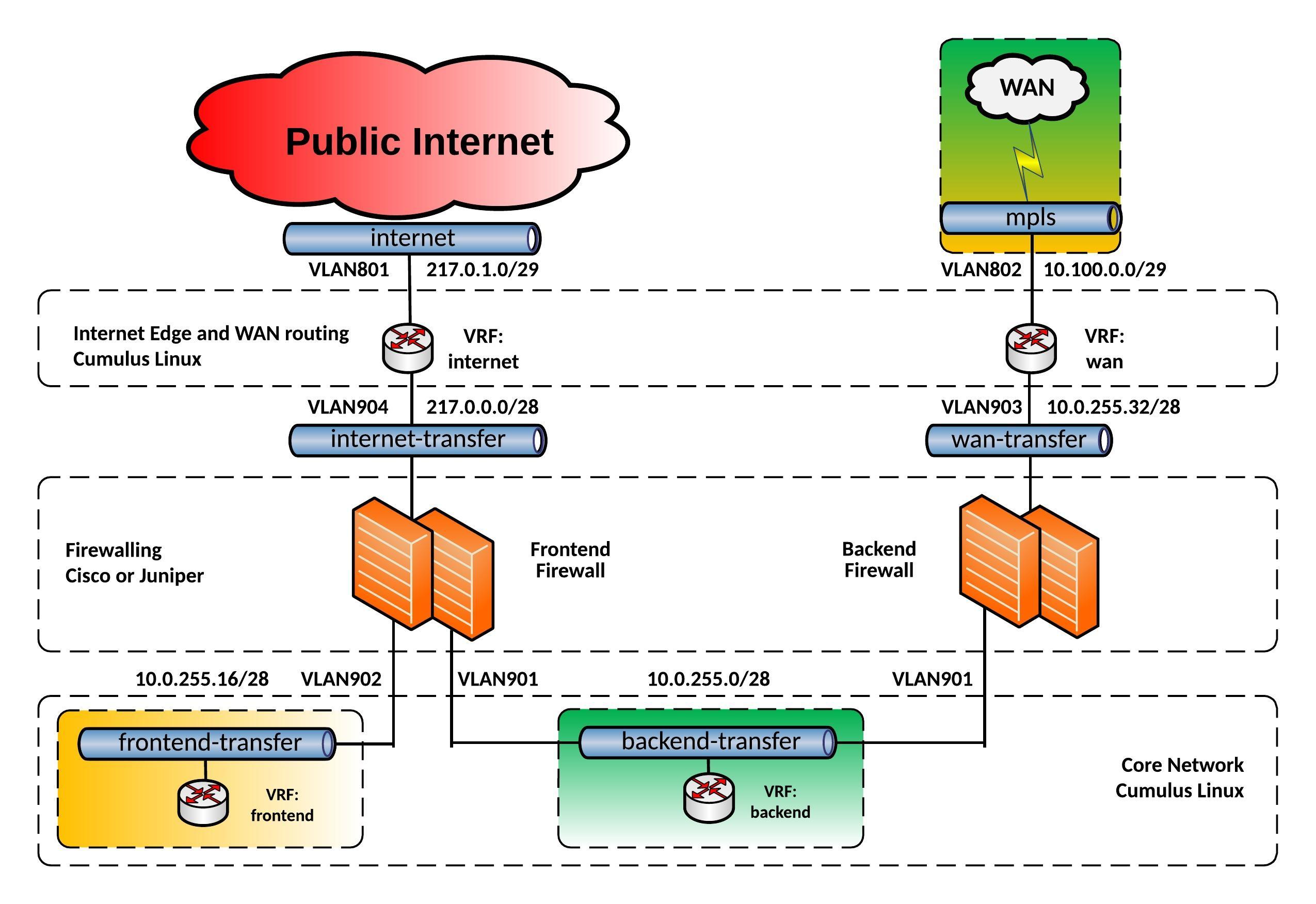
I was experimenting over the last weeks if I could use a Cumulus Linux switch as an Internet Edge and Wide Area Network router with running different VRFs for internet and WAN connectivity. I came up with the following edge network layout you see below:

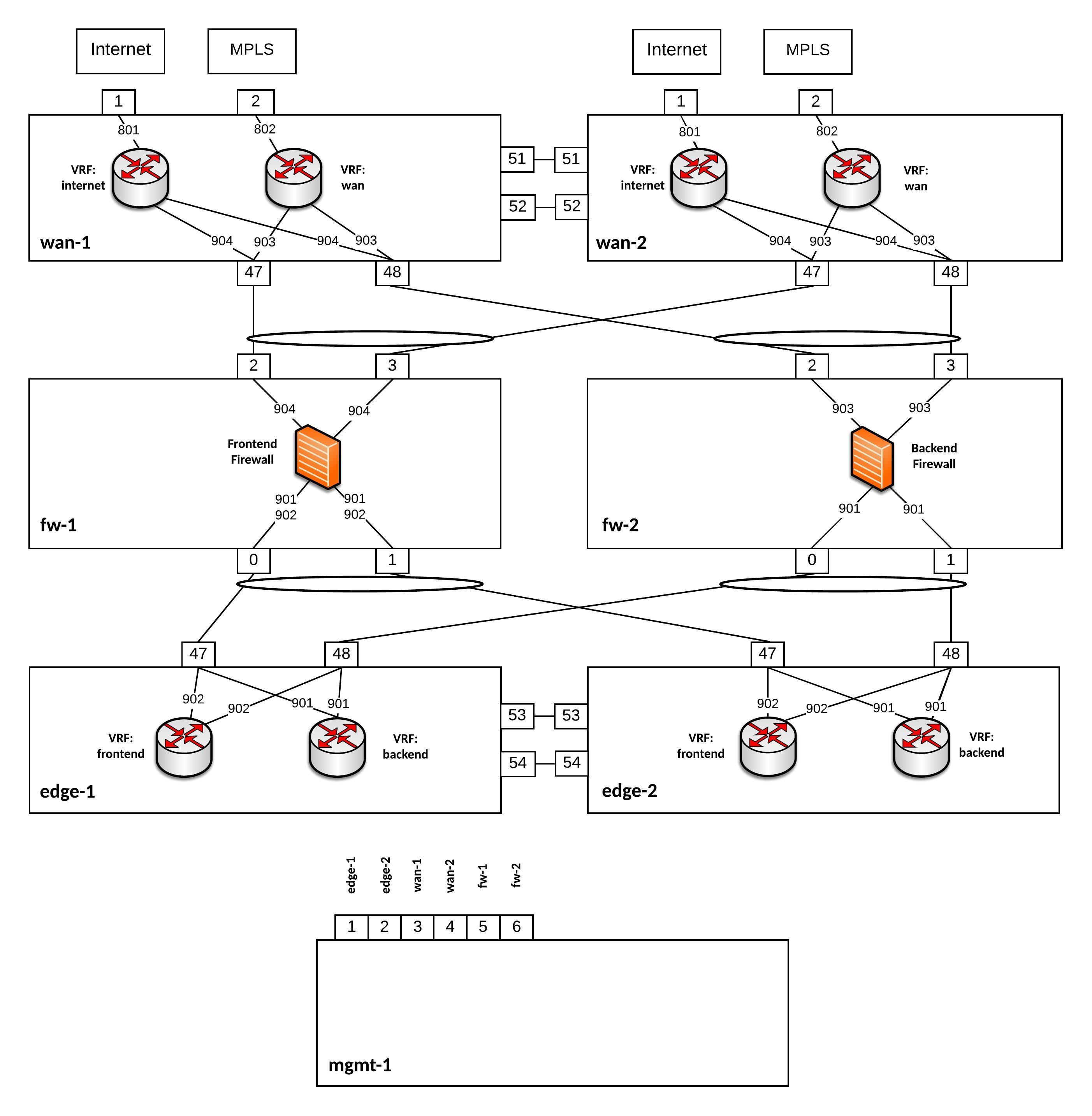
For this network, I build an Vagrant topology with Cumulus VX to simulate the edge routing and being able to test the connectivity. Below you see a more detailed view of the Vagrant topology:

Everything is running on Cumulus VX even the firewalls because I just wanted to simulate the traffic flow and see if the network communication is functioning. Also having separate WAN switches might be useful because 1Gbit/s switches are cheaper then 40Gbit/s switches and you need additional SFP for 1Gbit/s connections, another point is to separate your layer 2 WAN connectivity from your internal datacenter network.

Here the assigned IP addresses for this lab:

wan-1 VLAN801 PIP: 217.0.1.2/29 VIP: 217.0.1.1/29
wan-2 VLAN801 PIP: 217.0.1.3/29 VIP: 217.0.1.1/29
wan-1 VLAN802 PIP: 10.100.0.1/29 
wan-2 VLAN802 PIP: 10.100.0.2/29
wan-1 VLAN904 PIP: 217.0.0.2/28 VIP: 217.0.0.1/28
wan-2 VLAN904 PIP: 217.0.0.3/28 VIP: 217.0.0.1/28
fw-1 VLAN904 PIP: 217.0.0.14/28
wan-1 VLAN903 PIP: 10.0.255.34/28 VIP: 10.0.255.33/28
wan-2 VLAN903 PIP: 10.0.255.35/28 VIP: 10.0.255.33/28
fw-2 VLAN903 PIP: 10.0.255.46/28
edge-1 VLAN901 PIP: 10.0.255.2/28 VIP: 10.0.255.1/28
edge-2 VLAN901 PIP: 10.0.255.3/28 VIP: 10.0.255.1/28
fw-1 VLAN901 PIP: 10.0.255.14/28
fw-2 VLAN901 PIP: 10.0.255.12/28
edge-1 VLAN902 PIP: 10.0.255.18/28 VIP: 10.0.255.17/28
edge-2 VLAN902 PIP: 10.0.255.19/28 VIP: 10.0.255.17/28
fw-1 VLAN902 PIP: 10.0.255.30/28

You can find the Github repository for the Vagrant topology here: https://github.com/berndonline/cumulus-edge-vagrant

berndonline@lab:~/cumulus-edge-vagrant$ vagrant status
Current machine states:

fw-2                      running (libvirt)
fw-1                      running (libvirt)
mgmt-1                    running (libvirt)
edge-2                    running (libvirt)
edge-1                    running (libvirt)
wan-1                     running (libvirt)
wan-2                     running (libvirt)

This environment represents multiple VMs. The VMs are all listed
above with their current state. For more information about a specific
VM, run `vagrant status NAME`.
berndonline@lab:~/cumulus-edge-vagrant$

I wrote as well an Ansible Playbook to deploy the initial configuration which you can find here: https://github.com/berndonline/cumulus-edge-provision

Let’s execute the playbook:

berndonline@lab:~/cumulus-edge-vagrant$ ansible-playbook ../cumulus-edge-provision/site.yml

PLAY [edge] ********************************************************************************************************************************************************

TASK [switchgroups : create switch groups based on clag_pairs] *****************************************************************************************************
skipping: [edge-2] => (item=(u'wan', [u'wan-1', u'wan-2']))
skipping: [edge-1] => (item=(u'wan', [u'wan-1', u'wan-2']))
ok: [edge-2] => (item=(u'edge', [u'edge-1', u'edge-2']))
ok: [wan-1] => (item=(u'wan', [u'wan-1', u'wan-2']))
skipping: [wan-1] => (item=(u'edge', [u'edge-1', u'edge-2']))
ok: [edge-1] => (item=(u'edge', [u'edge-1', u'edge-2']))
ok: [wan-2] => (item=(u'wan', [u'wan-1', u'wan-2']))
skipping: [wan-2] => (item=(u'edge', [u'edge-1', u'edge-2']))

TASK [switchgroups : include switch group variables] ***************************************************************************************************************
skipping: [edge-2] => (item=(u'wan', [u'wan-1', u'wan-2']))
skipping: [edge-1] => (item=(u'wan', [u'wan-1', u'wan-2']))
ok: [wan-1] => (item=(u'wan', [u'wan-1', u'wan-2']))
skipping: [wan-1] => (item=(u'edge', [u'edge-1', u'edge-2']))
ok: [wan-2] => (item=(u'wan', [u'wan-1', u'wan-2']))
skipping: [wan-2] => (item=(u'edge', [u'edge-1', u'edge-2']))
ok: [edge-2] => (item=(u'edge', [u'edge-1', u'edge-2']))
ok: [edge-1] => (item=(u'edge', [u'edge-1', u'edge-2']))

...

RUNNING HANDLER [interfaces : reload networking] *******************************************************************************************************************
changed: [edge-2] => (item=ifreload -a)
changed: [edge-1] => (item=ifreload -a)
changed: [wan-1] => (item=ifreload -a)
changed: [wan-2] => (item=ifreload -a)
changed: [edge-2] => (item=sleep 10)
changed: [edge-1] => (item=sleep 10)
changed: [wan-2] => (item=sleep 10)
changed: [wan-1] => (item=sleep 10)

RUNNING HANDLER [routing : reload frr] *****************************************************************************************************************************
changed: [edge-2]
changed: [wan-1]
changed: [wan-2]
changed: [edge-1]

RUNNING HANDLER [ptm : restart ptmd] *******************************************************************************************************************************
changed: [edge-2]
changed: [edge-1]
changed: [wan-2]
changed: [wan-1]

RUNNING HANDLER [ntp : restart ntp] ********************************************************************************************************************************
changed: [wan-1]
changed: [edge-1]
changed: [wan-2]
changed: [edge-2]

RUNNING HANDLER [ifplugd : restart ifplugd] ************************************************************************************************************************
changed: [edge-1]
changed: [wan-1]
changed: [edge-2]
changed: [wan-2]

PLAY RECAP *********************************************************************************************************************************************************
edge-1                     : ok=21   changed=17   unreachable=0    failed=0
edge-2                     : ok=21   changed=17   unreachable=0    failed=0
wan-1                      : ok=21   changed=17   unreachable=0    failed=0
wan-2                      : ok=21   changed=17   unreachable=0    failed=0

berndonline@lab:~/cumulus-edge-vagrant$

At last but not least I wrote a simple Ansible Playbook for connectivity testing using ping what you can find here: https://github.com/berndonline/cumulus-edge-provision/blob/master/icmp_check.yml

berndonline@lab:~/cumulus-edge-vagrant$ ansible-playbook ../cumulus-edge-provision/check_icmp.yml

PLAY [exit edge] *********************************************************************************************************************************************************************************************************************

TASK [connectivity check from frontend firewall] *************************************************************************************************************************************************************************************
skipping: [fw-2] => (item=10.0.255.33)
skipping: [fw-2] => (item=10.0.255.17)
skipping: [fw-2] => (item=10.0.255.1)
skipping: [fw-2] => (item=217.0.0.1)
skipping: [edge-2] => (item=10.0.255.33)
skipping: [edge-2] => (item=10.0.255.17)
skipping: [edge-2] => (item=10.0.255.1)
skipping: [edge-1] => (item=10.0.255.33)
skipping: [edge-2] => (item=217.0.0.1)
skipping: [edge-1] => (item=10.0.255.17)
skipping: [edge-1] => (item=10.0.255.1)
skipping: [wan-1] => (item=10.0.255.33)
skipping: [edge-1] => (item=217.0.0.1)
skipping: [wan-1] => (item=10.0.255.17)
skipping: [wan-1] => (item=10.0.255.1)
skipping: [wan-1] => (item=217.0.0.1)
skipping: [wan-2] => (item=10.0.255.33)
skipping: [wan-2] => (item=10.0.255.17)
skipping: [wan-2] => (item=10.0.255.1)
skipping: [wan-2] => (item=217.0.0.1)
changed: [fw-1] => (item=10.0.255.33)
changed: [fw-1] => (item=10.0.255.17)
changed: [fw-1] => (item=10.0.255.1)
changed: [fw-1] => (item=217.0.0.1)
...
PLAY RECAP ***************************************************************************************************************************************************************************************************************************
edge-1                     : ok=2    changed=2    unreachable=0    failed=0
edge-2                     : ok=2    changed=2    unreachable=0    failed=0
fw-1                       : ok=1    changed=1    unreachable=0    failed=0
fw-2                       : ok=1    changed=1    unreachable=0    failed=0
wan-1                      : ok=2    changed=2    unreachable=0    failed=0
wan-2                      : ok=2    changed=2    unreachable=0    failed=0

berndonline@lab:~/cumulus-edge-vagrant$

The icmp check shows that in general the edge routing is working but I need to do some further testing with this if this can be used in a production environment.

If using switch hardware is not the right fit you can still install and use Free Range Routing (FRR) from Cumulus Networks on other Linux distributions and pick server hardware for your own custom edge router. I would only recommend checking Linux kernel support for VRF when choosing another Linux OS. Also have a look at my article about Open Source Routing GRE over IPSec with StrongSwan and Cisco IOS-XE where I build a Debian software router.

Please share your feedback and leave a comment.