Ansible Playbook for Cumulus Linux BGP IP-Fabric and Cumulus NetQ Validation

This is my Ansible Playbook for a Cumulus Linux BGP IP-Fabric using BGP unnumbered and Cumulus NetQ to validate the configuration in a CICD pipeline. I use the same CICD pipeline from my previous post about Continuous Integration and Delivery for Networking with Cumulus Linux but added the Cumulus NetQ validation in the production stage to check BGP and CLAG configuration.

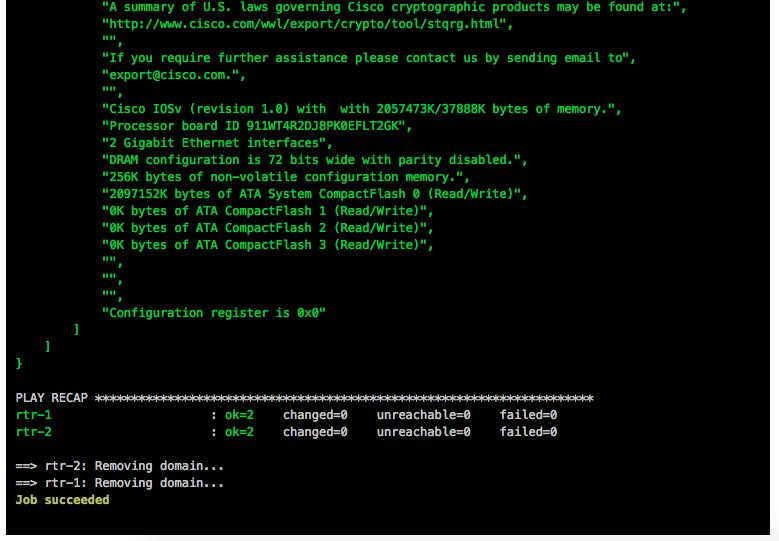
Network overview:

Here’s my Github repository where you find the complete Ansible Playbook: https://github.com/berndonline/cumulus-lab-provision

The variables are split between group_vars and host_vars. Still need to see if I can find a better way for the variables because interface settings for spine and edge switches are in group_vars, and for leaf switches the interface configuration is per host in host_vars. Not ideal at the moment, it should be the same for all devices.

Roles:

  • Hostname: This task changes the hostname
  • Interfaces: This creates the interfaces and bridge (only leafs and edges) configuration. The task uses templates interfaces.j2 and interfaces_config.j2 to create the configuration files under /etc/network/…
  • Routing: The template frr.j2 creates the FRR (Free Range Routing) configuration file. FRR replaces Quagga since Cumulus Linux version 3.4.x
  • PTM: Uses as well an template topology.j2 to generate the topology file for the Prescriptive Topology Manager (PTM)
  • NTP: Ntp and timezone settings

In most of the cases I use Jinja2 templates to generate configuration files. The site.yml is otherwise very simple. It executes the different roles, and triggers the handlers if a change is made by a role.

---

- hosts: network
  strategy: free

  user: cumulus
  become: 'True'
  gather_facts: 'False'

  handlers:
    - name: reload networking
      command: "{{item}}"
      with_items:
        - ifreload -a
        - sleep 10

    - name: reload frr
      service: name=frr state=reloaded

    - name: apply hostname
      command: hostname -F /etc/hostname

    - name: restart netq agent
      command: netq config agent restart

    - name: reload ptmd
      service: name=ptmd state=reloaded

    - name: apply timezone
      command: /usr/sbin/dpkg-reconfigure --frontend noninteractive tzdata

    - name: restart ntp
      service: name=ntp state=restarted

  roles:
    - hostname
    - interfaces
    - routing
    - ptm
    - ntp

Like mentioned in previous posts, I use Gitlab-CI for my Continuous Integration / Continuous Delivery (CICD) pipeline to simulate changes against a virtual Cumulus Linux network using Vagrant. You can find more information about the pipeline configuration in the .gitlab-ci.yml.

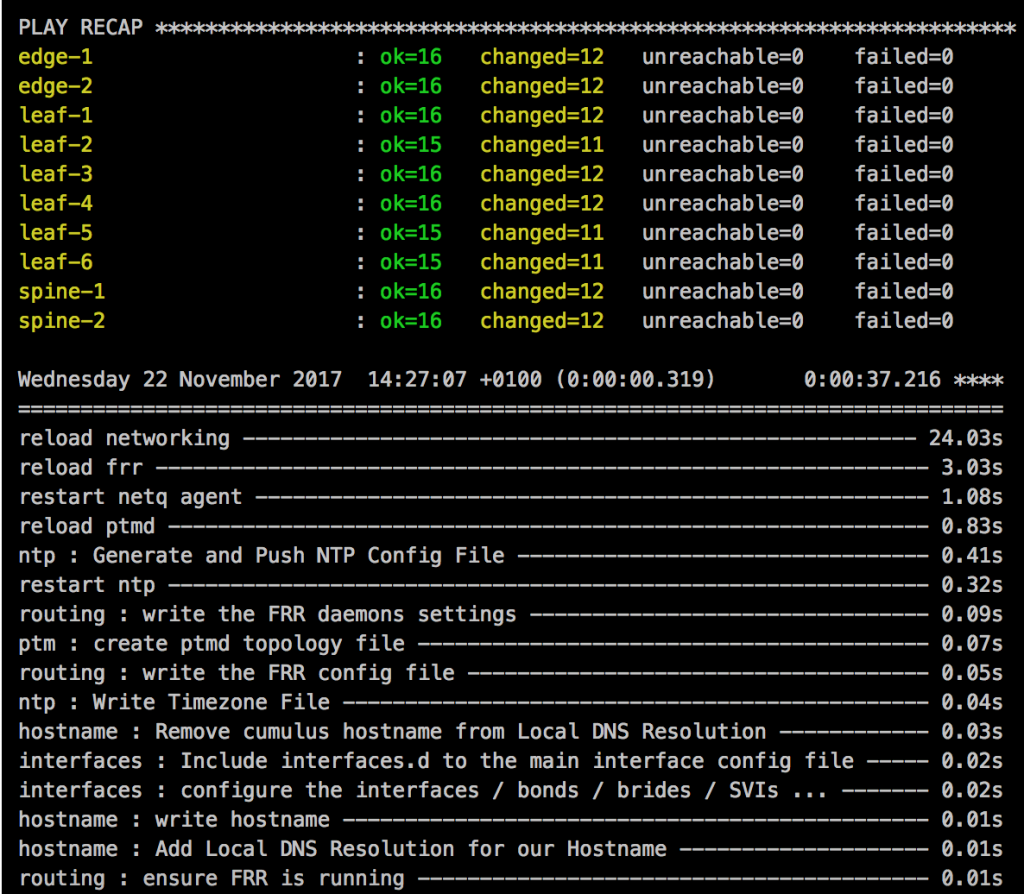
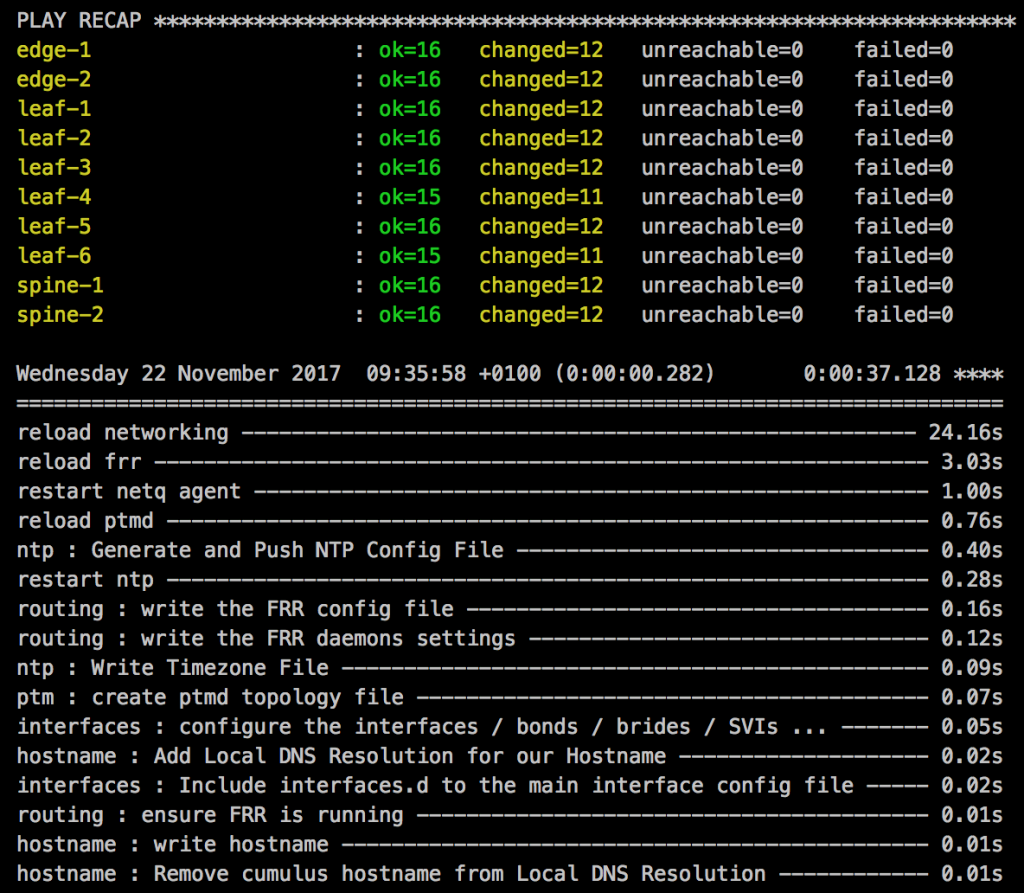
Changes in the staging branch will spin-up the Vagrant environment but only executes the the Ansible Playbook:

Cumulus NetQ configuration validation in production:

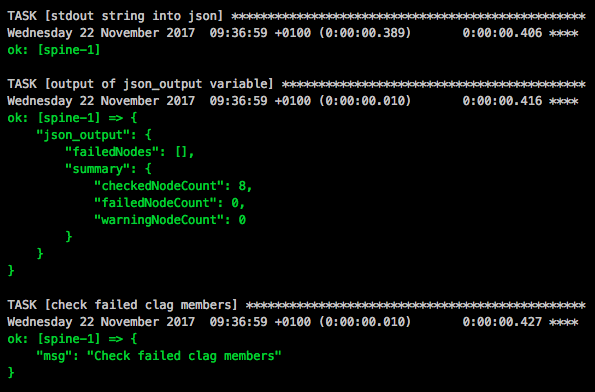
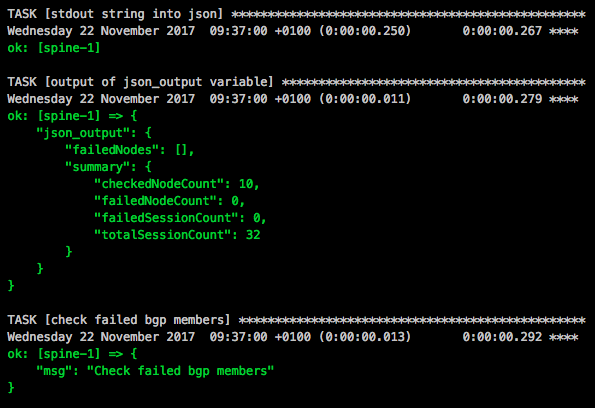
The production stage in the pipeline spins-up the Vagrant environment and executes the Ansible Playbook, then continues executing the two NetQ checks netq_check_bgp.yml and netq_check_clag.yml to validate the BGP and CLAG configuration:

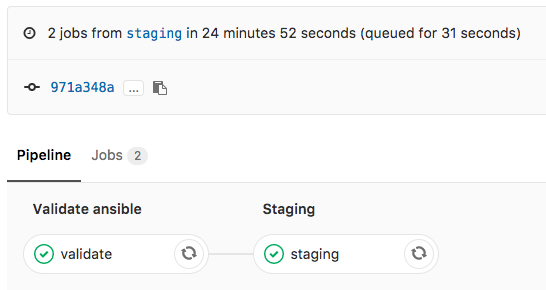
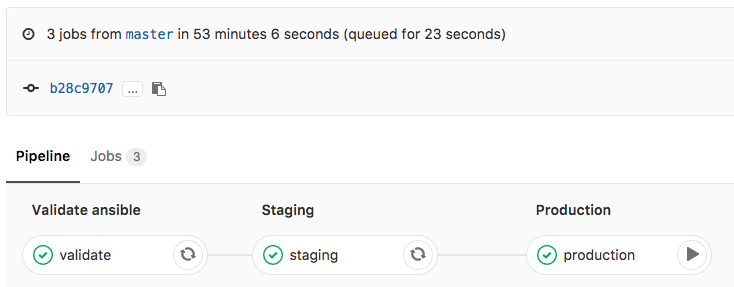
The result will look like this when all stages finish successfully:

I will continue to improve the Playbook and the CICD pipeline so come back later to check it out.

In my repository I have some other useful Playbooks for config backup and restore but also to collect and remove cl-support.

config_backup.yml

config_restore.yml

cl-support_get.yml

cl-support_remove.yml

Please tell me if you like it and share your feedback.

See my new post about BGP EVPN and VXLAN with Cumulus Linux

Leave a comment

Cumulus Linux Snapshot Rollback

After my first post about Cumulus Linux non-disruptive upgrade procedure on MLAG pairs here the rollback procedure which is good to know in case you need to revert a snapshot after an unsuccessful software upgrade or bigger configuration change which went wrong.

To back out from an upgrade, you can roll back the state of your switch (software and configuration) to an earlier snapshot.

The rollback is for sure disruptive!

The Rollback will revert the entire system except for logs and home directories. So any configuration changes made after the upgrade will also be reverted and lost.

To create a custom snapshot use the following command, otherwise during the software upgrade an snapshot is created automatically.

cumulus@switch:~$ sudo snapper create -d SNAPSHOT_NAME

To rollback a snapshot perform the following steps on each switch. View the list of snapshots on the switch using the following command

sudo snapper list

You will see output similar to the following:

cumulus@switch:~$ sudo snapper list
Type   | #  | Pre # | Date                            | User | Cleanup | Description                            | Userdata    
-------+----+-------+---------------------------------+------+---------+----------------------------------------+--------------
single | 0  |       |                                 | root |         | current                                |             
single | 1  |       | Sat 24 Sep 2016 01:45:36 AM UTC | root |         | first root filesystem                  |             
pre    | 20 |       | Thu 01 Dec 2016 01:43:29 AM UTC | root | number  | nclu pre  'net commit' (user cumulus)  |             
post   | 21 | 20    | Thu 01 Dec 2016 01:43:31 AM UTC | root | number  | nclu post 'net commit' (user cumulus)  |             
pre    | 22 |       | Thu 01 Dec 2016 01:44:18 AM UTC | root | number  | nclu pre  '20 rollback' (user cumulus) |             
post   | 23 | 22    | Thu 01 Dec 2016 01:44:18 AM UTC | root | number  | nclu post '20 rollback' (user cumulus) |             
single | 26 |       | Thu 01 Dec 2016 11:23:06 PM UTC | root |         | test_snapshot                          |             
pre    | 29 |       | Thu 01 Dec 2016 11:55:16 PM UTC | root | number  | pre-apt                                | important=yes
post   | 30 | 29    | Thu 01 Dec 2016 11:55:21 PM UTC | root | number  | post-apt                               | important=yes

You want to locate the “pre-apt” snapshot that corresponds to the date and time of the upgrade.  Once you have identified the snapshot, note the number from the second column of the table (#).

Determine the number on each switch and don’t assume the number is the same on both switches if you need to rollback.

For doing a rollback use the following command

sudo snapper rollback NUMBER#

You will see the following output:

cumulus@switch:~$ sudo snapper rollback 29
Creating read-only snapshot of current system. (Snapshot 31.)
Creating read-write snapshot of snapshot 29. (Snapshot 32.)
Setting default subvolume to snapshot 32.
cumulus@switch:~$

Note the snapshot number 31. reported for the “read-only snapshot of the current system”.   You can use this to revert the rollback if needed.

Reboot the system with the command

sudo reboot

More information you can find in the Cumulus Linux documentation:

https://docs.cumulusnetworks.com/display/DOCS/Using+Snapshots

VMware NSX-T 2.0 First Impression

Over the past two days I spend some time with VMware NSX-T 2.0 which has multi-hypervisor (KVM and ESXi) support, and is for containerised platform environments like Kubernetes and RedHat OpenShift. VMware has as well an NSX-T cloud version which can run in Amazon AWS and Google cloud services.

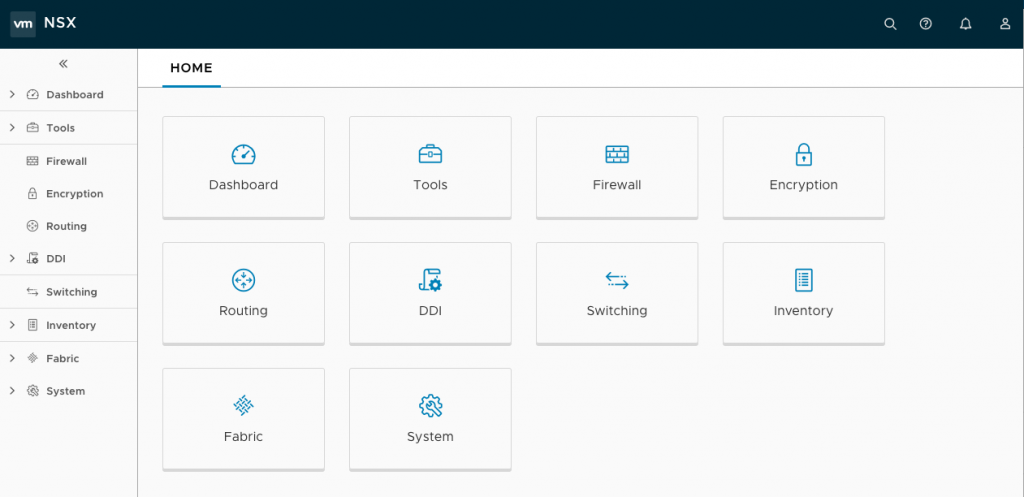
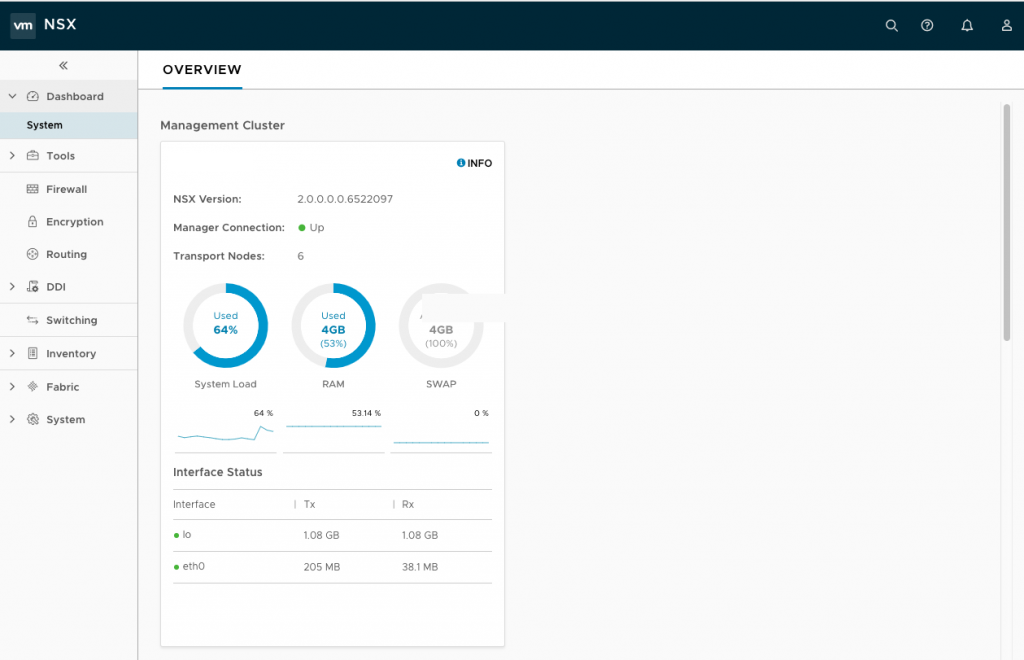
First big change is the new HTML5 web client which looks nice and clean, the menu structure is different to NSX-V for vSphere which you have to get used to first. NSX-V will also get the new HTML5 web clients soon I have heard:

VMware did quite a few changes in NSX-T, they moved over to Geneve and replaced the VXLAN encapsulation which is currently used in NSX-V. That makes it impossible at the moment to connect NSX-V and NSX-T because of the different overlay technologies.

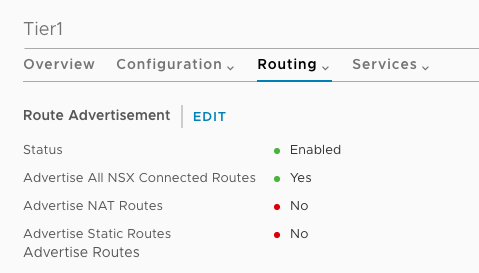
Routing works different to the previous NSX for vSphere version having Tier 0 (edge/aggregation) and Tier 1 (tenant) routers. Previously in NSX-V you used Edge appliances as tenant router which is now replace with Tier 1 distributed routing. On the Tier 1 tenant router you don’t need to configure BGP anymore, you just specify to advertise connected routes, the connection between Tier 1 and Tier 0 also pushed down the default gateway.

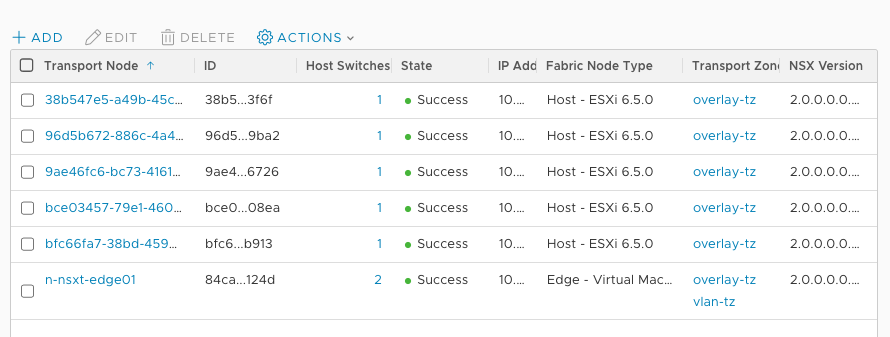
The Edge appliance can be deployed as virtual machine or on Bare-Metal servers which makes the Transport Zoning different to NSX-V because Edge appliances need to be part of Transport Zones to connect to the overlay and physical VLAN:

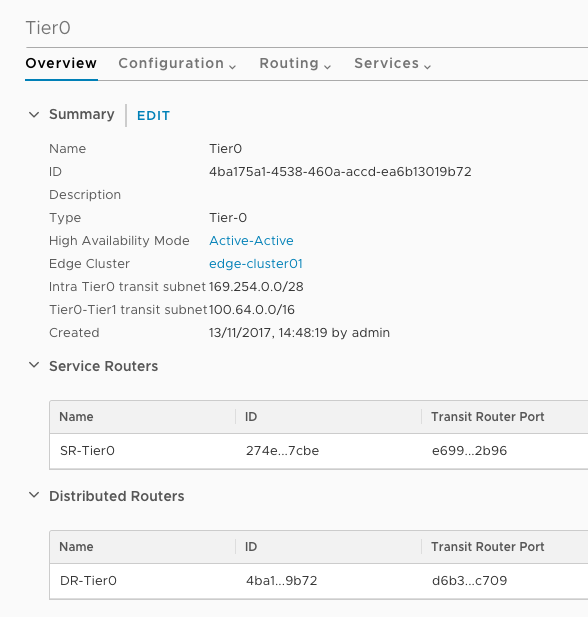
On the Edge itself you have two functions, Distributed Routing (DR) for stateless forwarding and Service Routing (SR) for stateful forwarding like NAT:

Load balancing is currently missing  in the Edge appliance but this is coming in one of the next releases for NSX-T.

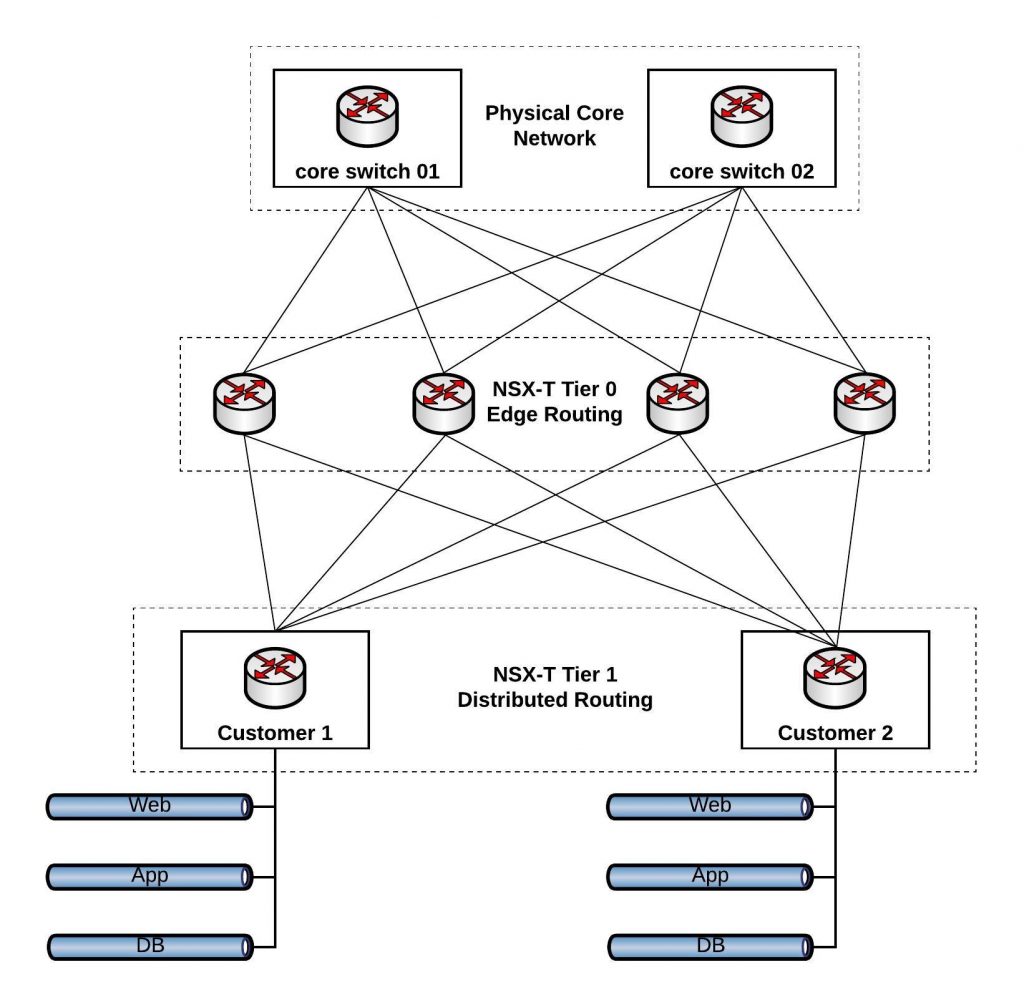
Here a network design with Tier 0 and Tier 1 routing in NSX-T:

I will write another post in the coming weeks about the detailed routing configuration in NSX-T. I am also curious to integrate Kubernetes in NSX-T to try out the integration for containerise platform environments.

Continuous Integration and Delivery for Networking with Cisco devices

This post is about continuous integration and continuous delivery (CICD) for Cisco devices and how to use network simulation to test automation before deploying this to production environments. That was one of the main reasons for me to use Vagrant for simulating the network because the virtual environment can be created on-demand and thrown away after the scripts run successful. Please read before my post about Cisco network simulation using Vagrant: Cisco IOSv and XE network simulation using Vagrant and Cisco ASAv network simulation using Vagrant.

Same like in my first post about Continuous Integration and Delivery for Networking with Cumulus Linux, I am using Gitlab.com and their Gitlab-runner for the continuous integration and delivery (CICD) pipeline.

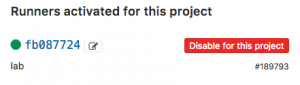
  • You need to register your Gitlab-runner with the Gitlab repository:

  • The next step is to create your .gitlab-ci.yml which defines your CI-pipeline.
---
stages:
    - validate ansible
    - staging iosv
    - staging iosxe
validate:
    stage: validate ansible
    script:
        - bash ./linter.sh
staging_iosv:
    before_script:
        - git clone https://github.com/berndonline/cisco-lab-vagrant.git
        - cd cisco-lab-vagrant/
        - cp Vagrantfile-IOSv Vagrantfile
    stage: staging iosv
    script:
        - bash ../staging.sh
staging_iosxe:
    before_script:
        - git clone https://github.com/berndonline/cisco-lab-vagrant.git
        - cd cisco-lab-vagrant/
        - cp Vagrantfile-IOSXE Vagrantfile
    stage: staging iosxe
    script:
        - bash ../staging.sh

I clone the cisco vagrant lab which I use to spin-up a virtual staging environment and run the Ansible playbook against the virtual lab. The stages IOSv and IOSXE are just examples in my case depending what Cisco IOS versions you want to test.

The production stage would be similar to staging only that you run the Ansible playbook against your physical environment.

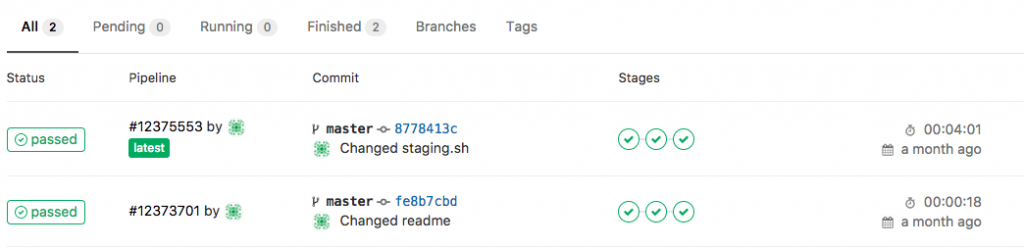
  • Basically any commit or merge in the Gitlab repo triggers the pipeline which is defined in the gitlab-ci.

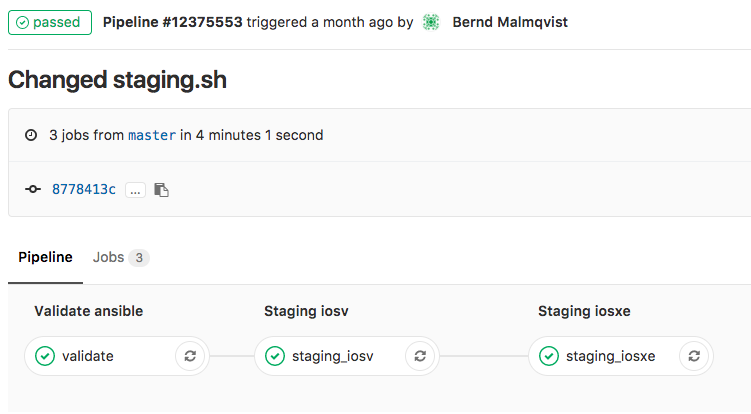
  • The first stage is only to validate that the YAML files have the correct syntax.

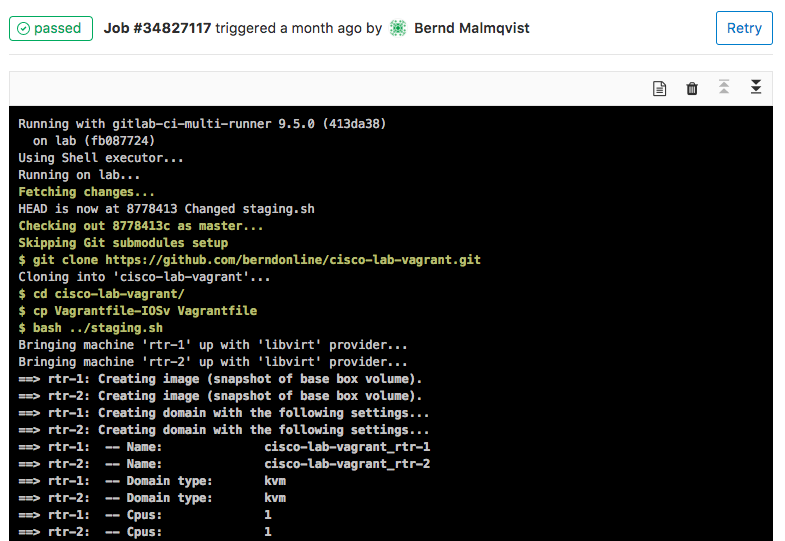
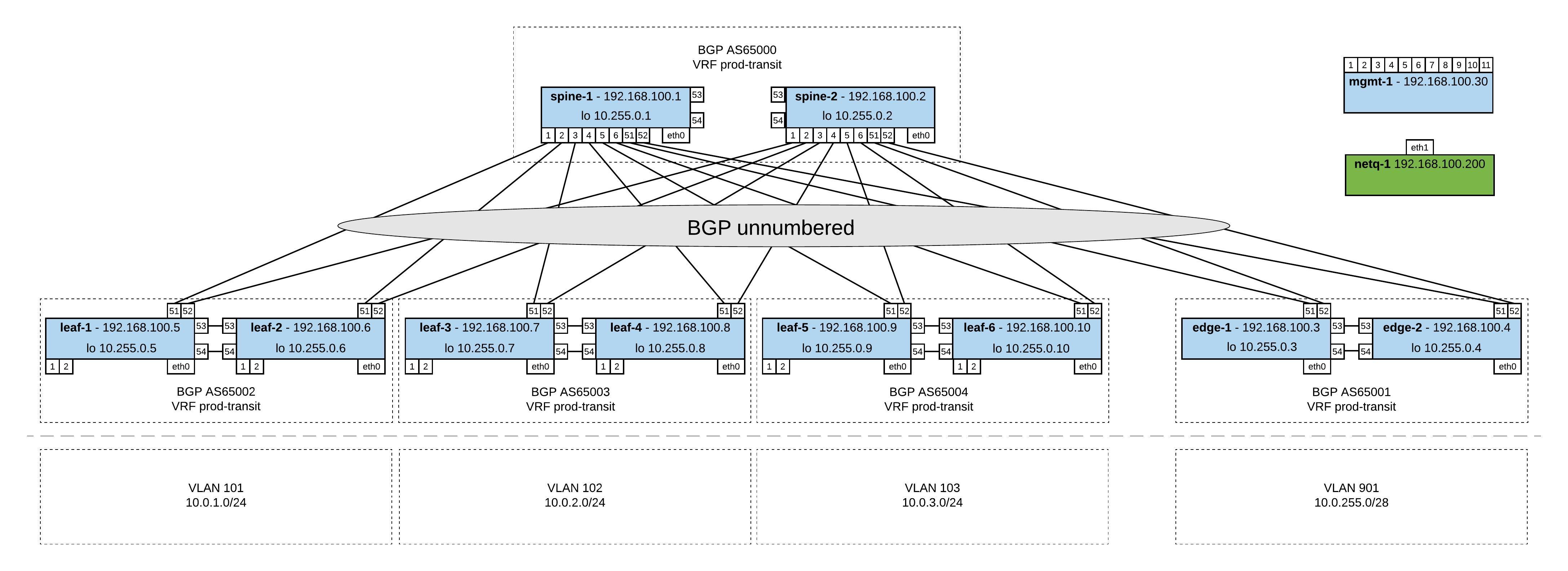
  • Here the details of a job and when everything goes well the job succeeded.

This is an easy way to test your Ansible playbooks against a virtual Cisco environment before deploying this to a production system.

Here again my two repositories I use:

https://github.com/berndonline/cisco-lab-vagrant

https://github.com/berndonline/cisco-lab-provision

Read my new posts about Ansible Playbook for Cisco ASAv Firewall Topology or Ansible Playbook for Cisco BGP Routing Topology.
Cisco ASAv network simulation using Vagrant

After creating IOSv and IOS XE Vagrant images, now doing the same for Cisco ASAv. Like in my last post same basic idea to create an simulated on-demand  network environment for continuous integration testing.

You need to buy the Cisco ASAv to get access to the KVM image on the Cisco website!

The Cisco ASAv is pretty easy because you can get QCOW2 images directly on the Cisco website, there are a few changes you need to do before you can use this together with Vagrant.

Boot the ASAv QCOW2 image on KVM and add the configuration below:

conf t
interface Management0/0
 nameif management
 security-level 0
 ip address dhcp
 no shutdown
 exit

hostname asa
domain-name lab.local
username vagrant password vagrant privilege 15
aaa authentication ssh console LOCAL
aaa authorization exec LOCAL auto-enable
ssh version 2
ssh timeout 60
ssh key-exchange group dh-group14-sha1
ssh 0 0 management

username vagrant attributes
  service-type admin
  ssh authentication publickey AAAAB3NzaC1yc2EAAAABIwAAAQEA6NF8iallvQVp22WDkTkyrtvp9eWW6A8YVr+kz4TjGYe7gHzIw+niNltGEFHzD8+v1I2YJ6oXevct1YeS0o9HZyN1Q9qgCgzUFtdOKLv6IedplqoPkcmF0aYet2PkEDo3MlTBckFXPITAMzF8dJSIFo9D8HfdOV0IAdx4O7PtixWKn5y2hMNG0zQPyUecp4pzC6kivAIhyfHilFR61RGL+GPXQ2MWZWFYbAGjyiYJnAmCP3NOTd0jMZEnDkbUvxhMmBYSdETk1rRgm+R4LOzFUGaHqHDLKLX+FIPKcF96hrucXzcWyLbIbEgE98OHlnVYCzRdK8jlqm8tehUc9c9WhQ==

Now the image is ready to use with Vagrant. Create an instance folder under the user vagrant directory and copy the QCOW2 image. As well create an metadata.json file:

mkdir -p ~/.vagrant.d/boxes/asav/0/libvirt/
cp ASAv.qcow2 ~/.vagrant.d/boxes/asav/0/libvirt/box.img
printf '{"provider":"libvirt","format":"qcow2","virtual_size":2}' > metadata.json

Create a Vagrantfile with the needed configuration and boot up the VMs. You have to start the VMs one by one.

berndonline@lab:~/asa-lab-vagrant$ vagrant status
Current machine states:

asa-1                     not created (libvirt)
asa-2                     not created (libvirt)

This environment represents multiple VMs. The VMs are all listed
above with their current state. For more information about a specific
VM, run `vagrant status NAME`.
berndonline@lab:~/asa-lab-vagrant$ vagrant up asa-1
Bringing machine 'asa-1' up with 'libvirt' provider...
==> asa-1: Creating image (snapshot of base box volume).
==> asa-1: Creating domain with the following settings...
==> asa-1:  -- Name:              asa-lab-vagrant_asa-1
==> asa-1:  -- Domain type:       kvm
==> asa-1:  -- Cpus:              1
==> asa-1:  -- Feature:           acpi
==> asa-1:  -- Feature:           apic
==> asa-1:  -- Feature:           pae
==> asa-1:  -- Memory:            2048M
==> asa-1:  -- Management MAC:
==> asa-1:  -- Loader:
==> asa-1:  -- Base box:          asav
==> asa-1:  -- Storage pool:      default
==> asa-1:  -- Image:             /var/lib/libvirt/images/asa-lab-vagrant_asa-1.img (8G)
==> asa-1:  -- Volume Cache:      default
==> asa-1:  -- Kernel:
==> asa-1:  -- Initrd:
==> asa-1:  -- Graphics Type:     vnc
==> asa-1:  -- Graphics Port:     5900
==> asa-1:  -- Graphics IP:       127.0.0.1
==> asa-1:  -- Graphics Password: Not defined
==> asa-1:  -- Video Type:        cirrus
==> asa-1:  -- Video VRAM:        9216
==> asa-1:  -- Sound Type:
==> asa-1:  -- Keymap:            en-us
==> asa-1:  -- TPM Path:
==> asa-1:  -- INPUT:             type=mouse, bus=ps2
==> asa-1: Creating shared folders metadata...
==> asa-1: Starting domain.
==> asa-1: Waiting for domain to get an IP address...
==> asa-1: Waiting for SSH to become available...
==> asa-1: Configuring and enabling network interfaces...
    asa-1: SSH address: 10.255.1.238:22
    asa-1: SSH username: vagrant
    asa-1: SSH auth method: private key
    asa-1: Warning: Connection refused. Retrying...
==> asa-1: Running provisioner: ansible...
    asa-1: Running ansible-playbook...

PLAY [all] *********************************************************************

PLAY RECAP *********************************************************************

berndonline@lab:~/asa-lab-vagrant$ vagrant up asa-2
Bringing machine 'asa-2' up with 'libvirt' provider...
==> asa-2: Creating image (snapshot of base box volume).
==> asa-2: Creating domain with the following settings...
==> asa-2:  -- Name:              asa-lab-vagrant_asa-2
==> asa-2:  -- Domain type:       kvm
==> asa-2:  -- Cpus:              1
==> asa-2:  -- Feature:           acpi
==> asa-2:  -- Feature:           apic
==> asa-2:  -- Feature:           pae
==> asa-2:  -- Memory:            2048M
==> asa-2:  -- Management MAC:
==> asa-2:  -- Loader:
==> asa-2:  -- Base box:          asav
==> asa-2:  -- Storage pool:      default
==> asa-2:  -- Image:             /var/lib/libvirt/images/asa-lab-vagrant_asa-2.img (8G)
==> asa-2:  -- Volume Cache:      default
==> asa-2:  -- Kernel:
==> asa-2:  -- Initrd:
==> asa-2:  -- Graphics Type:     vnc
==> asa-2:  -- Graphics Port:     5900
==> asa-2:  -- Graphics IP:       127.0.0.1
==> asa-2:  -- Graphics Password: Not defined
==> asa-2:  -- Video Type:        cirrus
==> asa-2:  -- Video VRAM:        9216
==> asa-2:  -- Sound Type:
==> asa-2:  -- Keymap:            en-us
==> asa-2:  -- TPM Path:
==> asa-2:  -- INPUT:             type=mouse, bus=ps2
==> asa-2: Creating shared folders metadata...
==> asa-2: Starting domain.
==> asa-2: Waiting for domain to get an IP address...
==> asa-2: Waiting for SSH to become available...
==> asa-2: Configuring and enabling network interfaces...
    asa-2: SSH address: 10.255.1.131:22
    asa-2: SSH username: vagrant
    asa-2: SSH auth method: private key
==> asa-2: Running provisioner: ansible...
    asa-2: Running ansible-playbook...

PLAY [all] *********************************************************************

PLAY RECAP *********************************************************************

berndonline@lab:~/asa-lab-vagrant$ vagrant status
Current machine states:

asa-1                     running (libvirt)
asa-2                     running (libvirt)

berndonline@lab:~/asa-lab-vagrant$

After the VMs are successfully booted you can connect with vagrant ssh:

berndonline@lab:~/asa-lab-vagrant$ vagrant ssh asa-1
Type help or '?' for a list of available commands.
asa# show version

Cisco Adaptive Security Appliance Software Version 9.6(2)
Device Manager Version 7.6(2)

Compiled on Tue 23-Aug-16 18:38 PDT by builders
System image file is "boot:/asa962-smp-k8.bin"
Config file at boot was "startup-config"

asa up 10 mins 31 secs

Hardware:   ASAv, 2048 MB RAM, CPU Xeon E5 series 3600 MHz,
Model Id:   ASAv10
Internal ATA Compact Flash, 8192MB
Slot 1: ATA Compact Flash, 8192MB
BIOS Flash Firmware Hub @ 0x0, 0KB

....

Configuration has not been modified since last system restart.
asa# exit

Logoff

Connection to 10.255.1.238 closed by remote host.
Connection to 10.255.1.238 closed.
berndonline@lab:~/asa-lab-vagrant$ vagrant destroy
==> asa-2: Removing domain...
==> asa-2: Running triggers after destroy...
Removing known host entries
==> asa-1: Removing domain...
==> asa-1: Running triggers after destroy...
Removing known host entries
berndonline@lab:~/asa-lab-vagrant$

Here I have a virtual ASAv environment which I can spin-up and down as needed for automation testing.

The example Vagrantfile you can find in my Github repository:

https://github.com/berndonline/asa-lab-vagrant/blob/master/Vagrantfile

Read my new post about an Ansible Playbook for Cisco ASAv Firewall Topology