Getting started with Gitlab-CI for Network Automation

Ken Murphy from networkautomationblog.com asked me to do a more detailed post about how to setup Gitlab-Runner on your local server to use with Gitlab-CI. I will not get into too much detail about the installation because Gitlab has a very detailed information about it which you can find here: https://docs.gitlab.com/runner/install/linux-repository.html

Once the Gitlab Runner is installed on your server you need to configure and register the runner with your Gitlab repo. If you are interested in information about this, you can find the documentation here: https://docs.gitlab.com/runner/register/ but lets continue with how to register the runner.

In your project go to ‘Settings -> CI / CD’ to find the registration token:
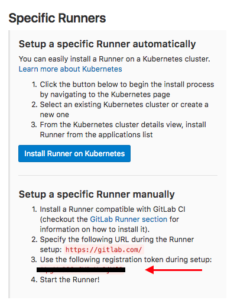
It is important to disable the shared runners:

Now let’s register the gitlab runner:

berndonline@lab ~ # sudo gitlab-runner register
Running in system-mode.

Please enter the gitlab-ci coordinator URL (e.g. https://gitlab.com/):
https://gitlab.com
Please enter the gitlab-ci token for this runner:
xxxxxxxxx
Please enter the gitlab-ci description for this runner:
[lab]:
Please enter the gitlab-ci tags for this runner (comma separated):
lab
Whether to run untagged builds [true/false]:
[false]: true
Whether to lock the Runner to current project [true/false]:
[true]: false
Registering runner... succeeded                     runner=xxxxx
Please enter the executor: docker-ssh, parallels, ssh, virtualbox, kubernetes, docker, shell, docker+machine, docker-ssh+machine:
shell
Runner registered successfully. Feel free to start it, but if it's running already the config should be automatically reloaded!
berndonline@lab ~ #

You will find the main configuration file under /etc/gitlab-runner/config.toml.

When everything goes well the runner is registered and active, and ready to apply the CI pipeline what is defined in the .gitlab-ci.yml.
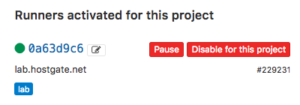
To use the runner with Vagrant and KVM (libvirt) there are a few changes needed on the linux server itself, first the gitlab-runner user account needs to be able to control KVM, second the vagrant-libvirt plugin needs to be installed:

usermod -aG libvirtd gitlab-runner
sudo su gitlab-runner
vagrant plugin install vagrant-libvirt

Optional: you may need to copy custom Vagrant boxes into the users vagrant folder ‘/home/gitlab-runner/.vagrant.d/boxes/*’.

Here the example from my Cumulus CI-pipeline .gitlab-ci.yml that I have already shared in my other blog post about Continuous Integration and Delivery for Networking with Cumulus Linux:

---
stages:
    - validate ansible
    - staging
    - production
validate:
    stage: validate ansible
    script:
        - bash ./linter.sh
staging:
    before_script:
        - git clone https://github.com/berndonline/cumulus-lab-vagrant.git
        - cd cumulus-lab-vagrant/
        - python ./topology_converter.py ./topology-production.dot
          -p libvirt --ansible-hostfile
    stage: staging
    script:
        - bash ../staging.sh
production:
    before_script:
        - git clone https://github.com/berndonline/cumulus-lab-vagrant.git
        - cd cumulus-lab-vagrant/
        - python ./topology_converter.py ./topology-production.dot
          -p libvirt --ansible-hostfile
    stage: production
    when: manual
    script:
        - bash ../production.sh
    only:
        - master

The next step is the staging.sh shell script which boots up the vagrant instances and executes the Ansible playbooks. It is better to use a script and report the exit state so that if something goes wrong the Vagrant instances are correctly destroyed.

#!/bin/bash

EXIT=0
vagrant up mgmt-1 --color <<< 'mgmt-1 boot' || EXIT=$?
vagrant up netq-1 --color <<< 'netq-1 boot' || EXIT=$?
sleep 300
vagrant up spine-1 --color <<< 'spine-1 boot' || EXIT=$?
vagrant up spine-2 --color <<< 'spine-2 boot' || EXIT=$?
sleep 60
vagrant up edge-1 --color <<< 'edge-1 boot' || EXIT=$?
vagrant up edge-2 --color <<< 'edge-2 boot' || EXIT=$?
sleep 60
vagrant up leaf-1 --color <<< 'leaf-1 boot' || EXIT=$?
vagrant up leaf-2 --color <<< 'leaf-2 boot' || EXIT=$?
vagrant up leaf-3 --color <<< 'leaf-3 boot' || EXIT=$?
vagrant up leaf-4 --color <<< 'leaf-4 boot' || EXIT=$?
vagrant up leaf-5 --color <<< 'leaf-5 boot' || EXIT=$?
vagrant up leaf-6 --color <<< 'leaf-6 boot' || EXIT=$?
sleep 60
vagrant up server-1 --color <<< 'server-1 boot' || EXIT=$?
vagrant up server-2 --color <<< 'server-2 boot' || EXIT=$?
vagrant up server-3 --color <<< 'server-3 boot' || EXIT=$?
vagrant up server-4 --color <<< 'server-4 boot' || EXIT=$?
vagrant up server-5 --color <<< 'server-5 boot' || EXIT=$?
vagrant up server-6 --color <<< 'server-6 boot' || EXIT=$?
sleep 60
export ANSIBLE_FORCE_COLOR=true
ansible-playbook ./helper_scripts/configure_servers.yml <<< 'ansible playbook' || EXIT=$?
ansible-playbook ../site.yml <<< 'ansible playbook' || EXIT=$?
sleep 60
ansible-playbook ../icmp_check.yml <<< 'icmp check' || EXIT=$?
vagrant destroy -f
echo $EXIT
exit $EXIT

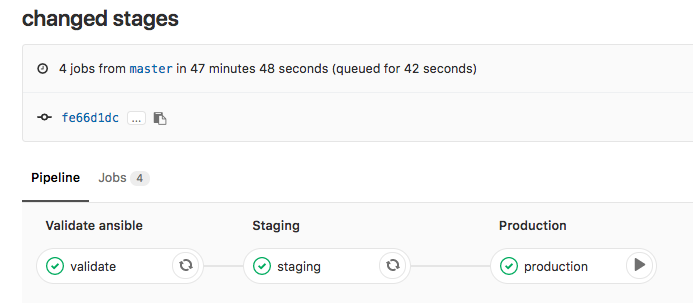
Basically any change in the repository triggers the .gitlab-ci.yml and executes the pipeline; starting with the stage validating the Ansible syntax:
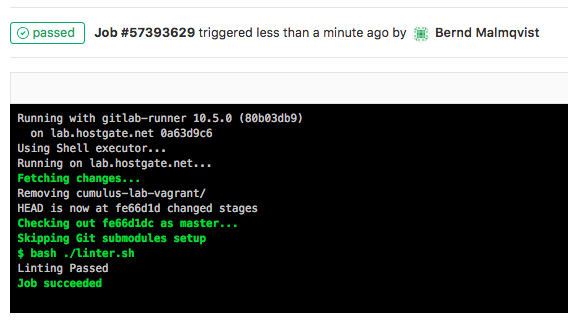
Continue with staging the configuration and deploying to production. The production stage is a manual trigger to have a controlled deployment:
In one of my next posts I will explain how to use Jenkins instead of Gitlab-CI for Network Automation. Jenkins is very similar to the runner but more flexible with what you can do with it.
Leave a comment

Running WordPress on OpenShift

This here is just a simple example deploying a web application like WordPress on an OpenShift cluster.

I am doing this via the command line because it is much quicker but you can also do this via the WebUI. First, we need to log in:

[vagrant@origin-master ~]$ oc login https://console.paas.domain.com:8443
The server is using a certificate that does not match its hostname: x509: certificate is not valid for any names, but wanted to match console.paas.domain.com
You can bypass the certificate check, but any data you send to the server could be intercepted by others.
Use insecure connections? (y/n): y

Authentication required for https://console.paas.domain.com:8443 (openshift)
Username: demo
Password:
Login successful.

You don't have any projects. You can try to create a new project, by running

    oc new-project 

[vagrant@origin-master ~]$

OpenShift tells us that we have no project, so let’s create a new project with the name testing:

[vagrant@origin-master ~]$ oc new-project testing
Now using project "testing" on server "https://console.paas.domain.com:8443".

You can add applications to this project with the 'new-app' command. For example, try:

    oc new-app centos/ruby-22-centos7~https://github.com/openshift/ruby-ex.git

to build a new example application in Ruby.
[vagrant@origin-master ~]$

After we have created the project we need to start creating the first app, in our case for WordPress we need MySQL for the database. This is just an example because the MySQL is not using persistent storage and I use sample DB information it created:

[vagrant@origin-master ~]$ oc new-app mysql-ephemeral
--> Deploying template "openshift/mysql-ephemeral" to project testing2

     MySQL (Ephemeral)
     ---------
     MySQL database service, without persistent storage. For more information about using this template, including OpenShift considerations, see https://github.com/sclorg/mysql-container/blob/master/5.7/README.md.

     WARNING: Any data stored will be lost upon pod destruction. Only use this template for testing

     The following service(s) have been created in your project: mysql.

            Username: user1M5
            Password: 5KmiOFJ4UH2UIKbG
       Database Name: sampledb
      Connection URL: mysql://mysql:3306/

     For more information about using this template, including OpenShift considerations, see https://github.com/sclorg/mysql-container/blob/master/5.7/README.md.

     * With parameters:
        * Memory Limit=512Mi
        * Namespace=openshift
        * Database Service Name=mysql
        * MySQL Connection Username=user1M5
        * MySQL Connection Password=5KmiOFJ4UH2UIKbG # generated
        * MySQL root user Password=riPsYFaVEpHBYAWf # generated
        * MySQL Database Name=sampledb
        * Version of MySQL Image=5.7

--> Creating resources ...
    secret "mysql" created
    service "mysql" created
    deploymentconfig "mysql" created
--> Success
    Application is not exposed. You can expose services to the outside world by executing one or more of the commands below:
     'oc expose svc/mysql'
    Run 'oc status' to view your app.
[vagrant@origin-master ~]$

Next, let us create a PHP app and pulling the latest WordPress install from Github.

[vagrant@origin-master ~]$ oc new-app php~https://github.com/wordpress/wordpress
-->; Found image fa73ae7 (5 days old) in image stream "openshift/php" under tag "7.0" for "php"

    Apache 2.4 with PHP 7.0
    -----------------------
    PHP 7.0 available as docker container is a base platform for building and running various PHP 7.0 applications and frameworks. PHP is an HTML-embedded scripting language. PHP attempts to make it easy for developers to write dynamically generated web pages. PHP also offers built-in database integration for several commercial and non-commercial database management systems, so writing a database-enabled webpage with PHP is fairly simple. The most common use of PHP coding is probably as a replacement for CGI scripts.

    Tags: builder, php, php70, rh-php70

    * A source build using source code from https://github.com/wordpress/wordpress will be created
      * The resulting image will be pushed to image stream "wordpress:latest"
      * Use 'start-build' to trigger a new build
    * This image will be deployed in deployment config "wordpress"
    * Ports 8080/tcp, 8443/tcp will be load balanced by service "wordpress"
      * Other containers can access this service through the hostname "wordpress"

-->; Creating resources ...
    imagestream "wordpress" created
    buildconfig "wordpress" created
    deploymentconfig "wordpress" created
    service "wordpress" created
-->; Success
    Build scheduled, use 'oc logs -f bc/wordpress' to track its progress.
    Application is not exposed. You can expose services to the outside world by executing one or more of the commands below:
     'oc expose svc/wordpress'
    Run 'oc status' to view your app.
[vagrant@origin-master ~]$

Last but not least I need to expose the PHP WordPress app:

[vagrant@origin-master ~]$ oc expose service wordpress
route "wordpress" exposed
[vagrant@origin-master ~]$

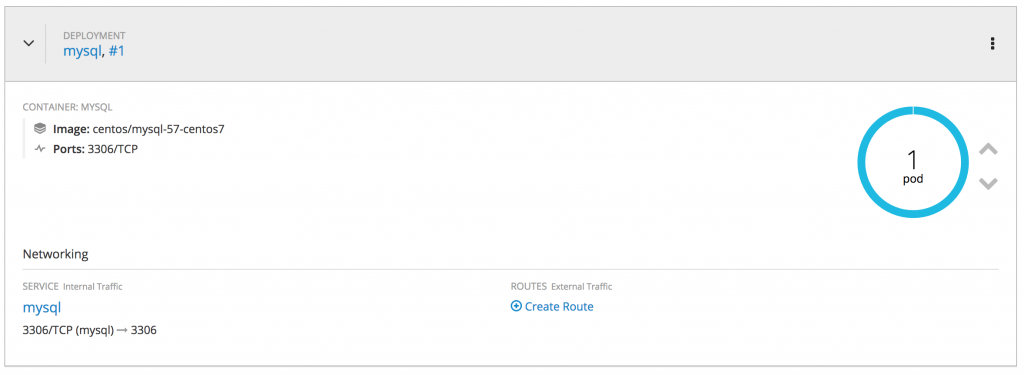
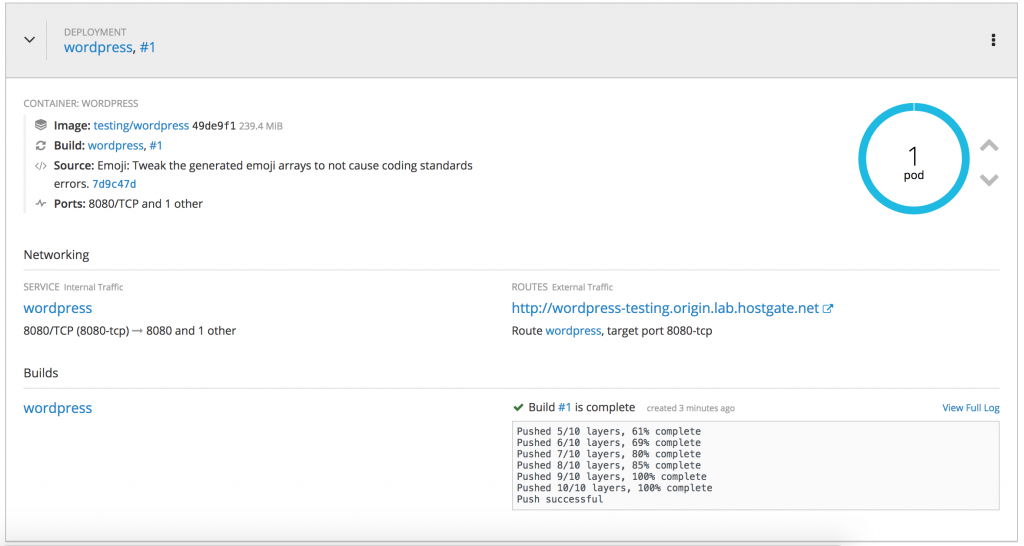
Here is a short overview of how it looks in the OpenShift web console, you see the deployed MySQL pod and the PHP pod which run WordPress:

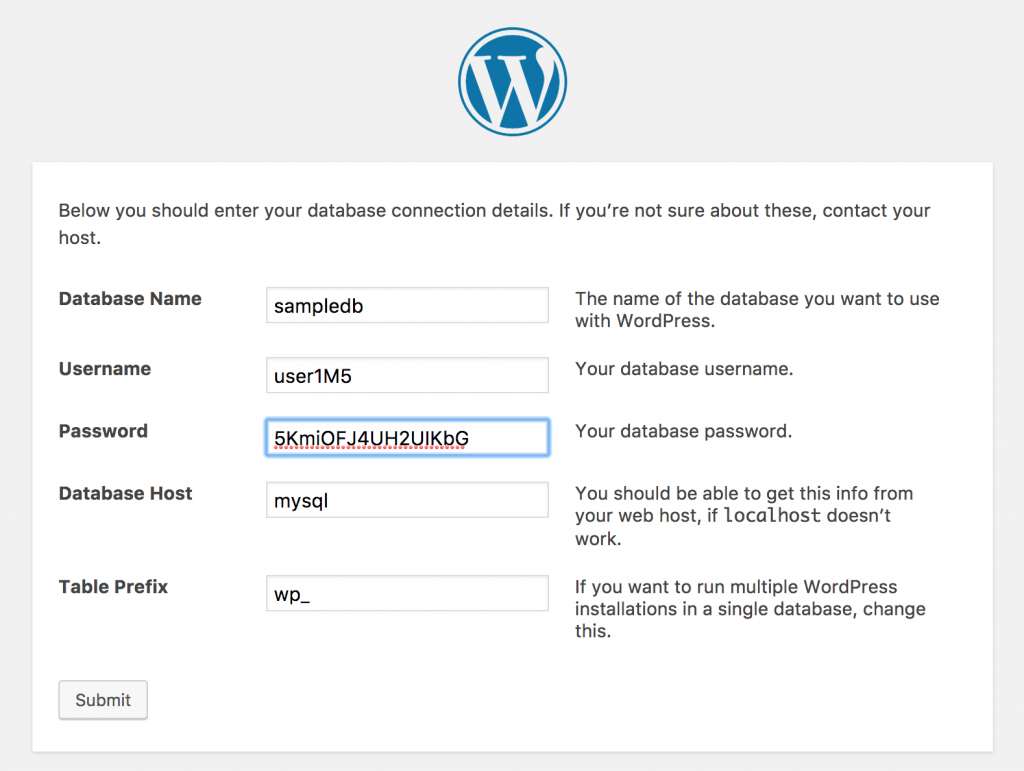
Next, you open the URL http://wordpress-testing.paas.domain.com/ and see the WordPress install menu where you start configuring the database connection using the info I got from OpenShift when I created the MySQL pod:

I can customise the DB connection settings if I want to have a more permanent solution:

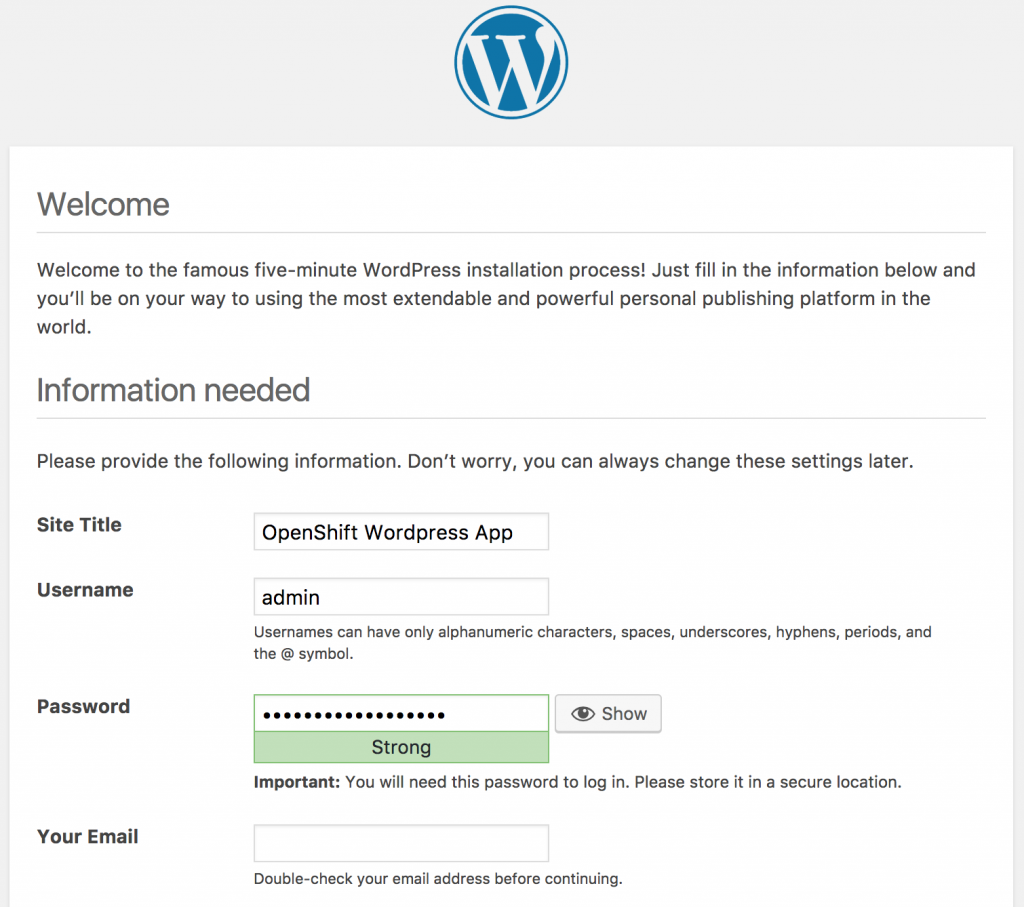
A voilà, your WordPress is deployed in OpenShift:

This is just a very simple example but it took me less than a minute to deploy the web application. Read also my other post about Deploying OpenShift Origin Cluster using Ansible.

Please share your feedback.

Leave a comment

Deploy OpenShift 3.7 Origin Cluster with Ansible

Something completely different to my more network related posts, this time it is about Platform as a Service with OpenShift Origin. There is a big push for containerized platform services from development.

I was testing the official OpenShift Origin Ansible Playbook to install a small 5 node cluster and created an OpenShift Vagrant environment for this.

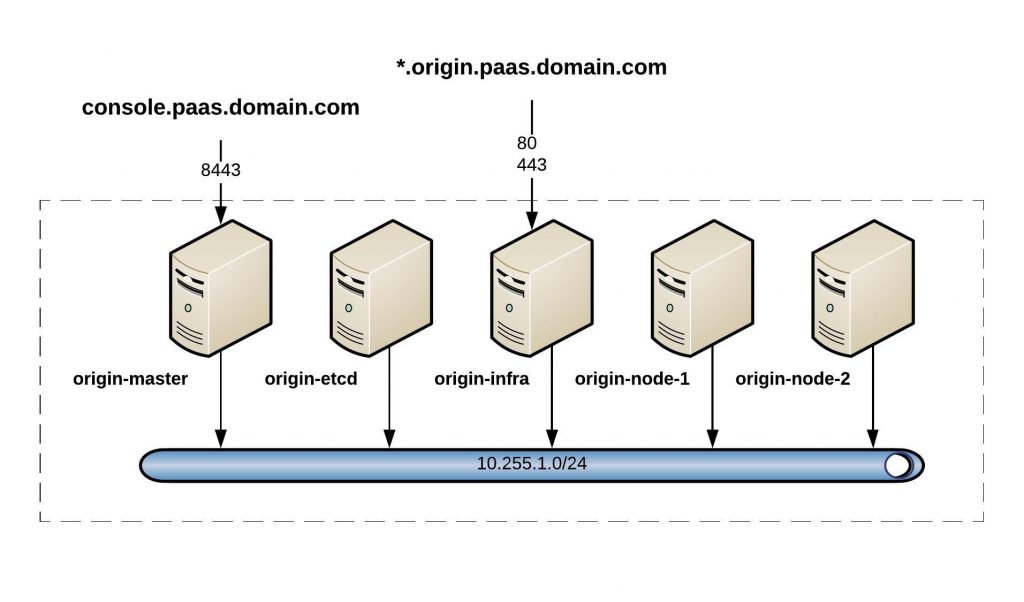
Cluster overview:

I recommend having a look at the official RedHat OpenShift documentation to understand the architecture because it is quite a complex platform.

As a pre-requisite, you need to install the vagrant hostmanager because Openshift needs to resolve hostnames and I don’t want to install a separate DNS server. Here you find more information: https://github.com/devopsgroup-io/vagrant-hostmanager

vagrant plugin install vagrant-hostmanager

sudo bash -c 'cat << EOF > /etc/sudoers.d/vagrant_hostmanager2
Cmnd_Alias VAGRANT_HOSTMANAGER_UPDATE = /bin/cp <your-home-folder>/.vagrant.d/tmp/hosts.local /etc/hosts
%sudo ALL=(root) NOPASSWD: VAGRANT_HOSTMANAGER_UPDATE
EOF'

Next, clone my Vagrant repository and the official OpenShift Origin ansible:

git clone [email protected]:berndonline/openshift-origin-vagrant.git
git clone [email protected]:openshift/openshift-ansible.git

Let’s start first by booting the OpenShift vagrant environment:

cd openshift-origin-vagrant/
./vagrant_up.sh

The vagrant host manager will update dynamically the /etc/hosts file on both the Guest and the Host machine:

...
## vagrant-hostmanager-start id: 55ed9acf-25e9-4b19-bfab-e0812a292dc0
10.255.1.81	origin-master

10.255.1.231	origin-etcd

10.255.1.182	origin-infra

10.255.1.72	origin-node-1

10.255.1.145	origin-node-2

## vagrant-hostmanager-end
...

Let’s have a quick look at the OpenShift inventory file. This has settings for the different node types and custom OpenShift and Vagrant variables. You need to modify a few things like public hostname and default subdomain:

OSEv3:children]
masters
nodes
etcd

[OSEv3:vars]
ansible_ssh_user=vagrant
ansible_become=yes

deployment_type=origin
openshift_release=v3.7.0
containerized=true
openshift_install_examples=true
enable_excluders=false
openshift_check_min_host_memory_gb=4
openshift_disable_check=docker_image_availability,docker_storage,disk_availability

# use htpasswd authentication with demo/demo
openshift_master_identity_providers=[{'name': 'htpasswd_auth', 'login': 'true', 'challenge': 'true', 'kind': 'HTPasswdPasswordIdentityProvider', 'filename': '/etc/origin/master/htpasswd'}]
openshift_master_htpasswd_users={'demo': '$apr1$.MaA77kd$Rlnn6RXq9kCjnEfh5I3w/.'}

# put the router on dedicated infra node
openshift_hosted_router_selector='region=infra'
openshift_master_default_subdomain=origin.paas.domain.com

# put the image registry on dedicated infra node
openshift_hosted_registry_selector='region=infra'

# project pods should be placed on primary nodes
osm_default_node_selector='region=primary'

# Vagrant variables
ansible_port='22' 
ansible_user='vagrant'
ansible_ssh_private_key_file='/home/berndonline/.vagrant.d/insecure_private_key'

[masters]
origin-master  openshift_public_hostname="console.paas.domain.com"

[etcd]
origin-etcd

[nodes]
# master needs to be included in the node to be configured in the SDN
origin-master
origin-infra openshift_node_labels="{'region': 'infra', 'zone': 'default'}"
origin-node-[1:2] openshift_node_labels="{'region': 'primary', 'zone': 'default'}"

Now that we are ready, we need to check out the latest release and execute the Ansible Playbook:

cd openshift-ansible/
git checkout release-3.7
ansible-playbook ./playbooks/byo/config.yml -i ../openshift-origin-vagrant/inventory

The playbook takes forever to run, so do something else for the next 10 to 15 mins.

...

PLAY RECAP **********************************************************************************************************************************************************
localhost                  : ok=13   changed=0    unreachable=0    failed=0
origin-etcd                : ok=147  changed=47   unreachable=0    failed=0
origin-infra               : ok=202  changed=61   unreachable=0    failed=0
origin-master              : ok=561  changed=224  unreachable=0    failed=0
origin-node                : ok=201  changed=61   unreachable=0    failed=0


INSTALLER STATUS ****************************************************************************************************************************************************
Initialization             : Complete
Health Check               : Complete
etcd Install               : Complete
Master Install             : Complete
Master Additional Install  : Complete
Node Install               : Complete
Hosted Install             : Complete
Service Catalog Install    : Complete

Sunday 21 January 2018  20:55:16 +0100 (0:00:00.011)       0:11:56.549 ********
===============================================================================
etcd : Pull etcd container ---------------------------------------------------------------------------------------------------------------------------------- 79.51s
openshift_hosted : Ensure OpenShift pod correctly rolls out (best-effort today) ----------------------------------------------------------------------------- 31.54s
openshift_node : Pre-pull node image when containerized ----------------------------------------------------------------------------------------------------- 31.28s
template_service_broker : Verify that TSB is running -------------------------------------------------------------------------------------------------------- 30.87s
docker : Install Docker ------------------------------------------------------------------------------------------------------------------------------------- 30.41s
docker : Install Docker ------------------------------------------------------------------------------------------------------------------------------------- 26.32s
openshift_cli : Pull CLI Image ------------------------------------------------------------------------------------------------------------------------------ 23.03s
openshift_service_catalog : wait for api server to be ready ------------------------------------------------------------------------------------------------- 21.32s
openshift_hosted : Ensure OpenShift pod correctly rolls out (best-effort today) ----------------------------------------------------------------------------- 16.27s
restart master api ------------------------------------------------------------------------------------------------------------------------------------------ 10.69s
restart master controllers ---------------------------------------------------------------------------------------------------------------------------------- 10.62s
openshift_node : Start and enable node ---------------------------------------------------------------------------------------------------------------------- 10.42s
openshift_node : Start and enable node ---------------------------------------------------------------------------------------------------------------------- 10.30s
openshift_master : Start and enable master api on first master ---------------------------------------------------------------------------------------------- 10.21s
openshift_master : Start and enable master controller service ----------------------------------------------------------------------------------------------- 10.19s
os_firewall : Install iptables packages --------------------------------------------------------------------------------------------------------------------- 10.15s
os_firewall : Wait 10 seconds after disabling firewalld ----------------------------------------------------------------------------------------------------- 10.07s
os_firewall : need to pause here, otherwise the iptables service starting can sometimes cause ssh to fail --------------------------------------------------- 10.05s
openshift_node : Pre-pull node image when containerized ------------------------------------------------------------------------------------------------------ 7.85s
openshift_service_catalog : oc_process ----------------------------------------------------------------------------------------------------------------------- 7.44s

To publish both the openshift_public_hostname and openshift_master_default_subdomain, I have a Nginx reverse proxy running and publish 8443 from the origin-master and 80, 443 from the origin-infra nodes.

Here a Nginx example:

server {
  listen 8443 ssl;
  listen [::]:8443 ssl;
  server_name console.paas.domain.com;

  ssl on;
  ssl_certificate /etc/nginx/ssl/paas.domain.com-cert.pem;
  ssl_certificate_key /etc/nginx/ssl/paas.domain.com-key.pem;

  access_log  /var/log/nginx/openshift-console_access.log;
  error_log   /var/log/nginx/openshift-console_error.log;

location / {
  proxy_pass https://10.255.1.81:8443;
  proxy_http_version 1.1;
  proxy_set_header Upgrade $http_upgrade;
  proxy_set_header Connection 'upgrade';
  proxy_set_header Host $host;
  proxy_cache_bypass $http_upgrade;

  }
}

I will try to write more about OpenShift and Platform as a Service and how to deploy small applications like WordPress.

Have fun testing OpenShift and please share your feedback.

Leave a comment

Open Source Routing GRE over IPSec with StrongSwan and Cisco IOS-XE

In my previous post about the Ansible Playbook for VyOS and BGP Routing, I wrote that I was looking for some Open Source alternatives for software routers to use in AWS Transit VPCs.

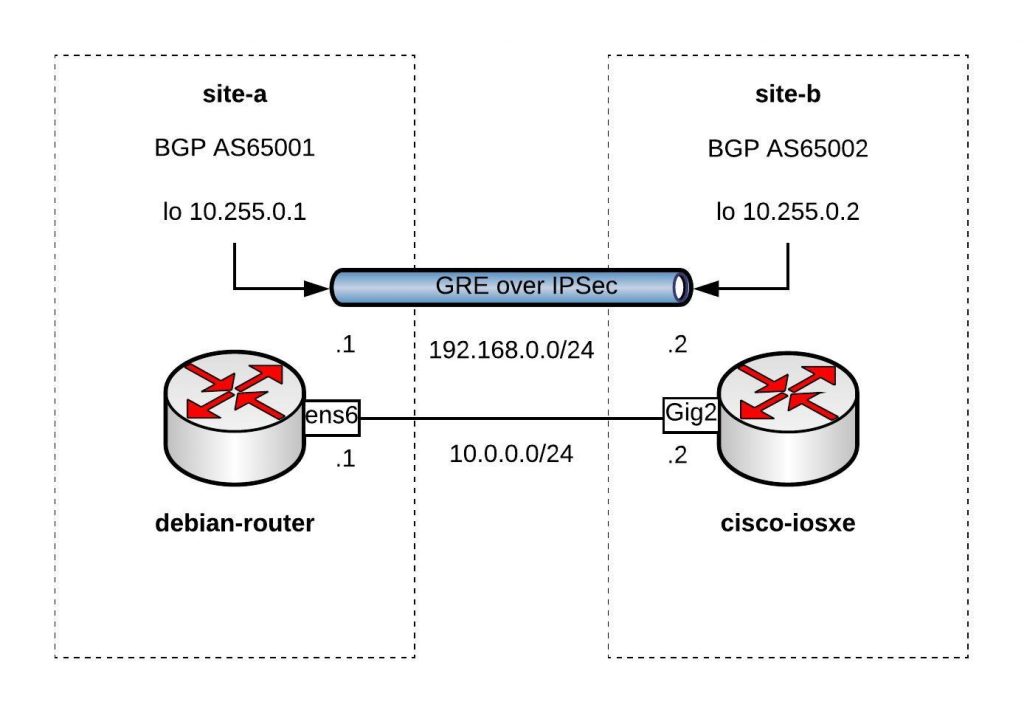
Here is the example using a Debian Linux,  FRR (Free Range Routing) and StrongSwan connecting over a GRE over IPSec tunnel to a Cisco IOS-XE (CSRv) router:

You can find the Vagrantfile in my Github repo https://github.com/berndonline/debian-router-vagrant. During the boot Ansible runs and pre-configures both nodes but continue reading about the detailed configuration:

sudo apt-get update
sudo apt-get upgrade -y

Enable IP routing by adding the following line to /etc/sysctl.conf:

sudo vi /etc/sysctl.conf
net.ipv4.ip_forward = 1
sudo sysctl -p /etc/sysctl.conf

Download the latest FRR release for Debian 9 x86_64 from https://github.com/FRRouting/frr/releases

Install FRR and don’t worry about any dependency errors from the first command, the second command will install the missing dependencies. Next, enable the needed FRR daemons and start the service:

wget https://github.com/FRRouting/frr/releases/download/frr-3.0.3/frr_3.0.3-1_debian9.1_amd64.deb
wget https://github.com/FRRouting/frr/releases/download/frr-3.0.3/frr-pythontools_3.0.3-1_debian9.1_all.deb
wget https://github.com/FRRouting/frr/releases/download/frr-3.0.3/frr-doc_3.0.3-1_debian9.1_all.deb
sudo dpkg -i frr_3.0.3-1_debian9.1_amd64.deb frr-pythontools_3.0.3-1_debian9.1_all.deb frr-doc_3.0.3-1_debian9.1_all.deb
sudo apt-get install -f -y

sudo bash -c 'cat << EOF > /etc/frr/daemons
zebra=yes
bgpd=yes
ospfd=no
ospf6d=no
ripd=no
ripngd=no
isisd=no
pimd=no
ldpd=no
nhrpd=no
EOF'

sudo bash -c 'cat << EOF > /etc/frr/frr.conf
!
frr version 3.0.3
frr defaults traditional
no ipv6 forwarding
!
router bgp 65001
 neighbor 192.168.0.2 remote-as 65002
 !
 address-family ipv4 unicast
  network 10.255.0.1/32
 exit-address-family
 vnc defaults
  response-lifetime 3600
  exit-vnc
!
line vty
!
EOF'

sudo systemctl enable frr
sudo systemctl start frr

Install StrongSwan and change a few settings before you can enable and start the service:

sudo apt-get install -y strongswan-swanctl charon-systemd

sudo bash -c 'cat << EOF > /etc/strongswan.d/charon/connmark.conf
connmark {
 
    # Disable connmark plugin
    # Needed for tunnels - see https://wiki.strongswan.org/projects/strongswan/wiki/RouteBasedVPN
    load = no
 
}
EOF'
sudo bash -c 'cat << EOF > /etc/strongswan.d/charon.conf
charon {
 
    # Cisco IKEv2 wants to use reauth - need to set make_before_break otherwise
    # strongSwan will have a very brief outage during IKEv2 reauth
    make_before_break = yes
 
    # Needed for tunnels - see https://wiki.strongswan.org/projects/strongswan/wiki/RouteBasedVPN
    install_routes = no
 
}
EOF'

sudo systemctl enable strongswan-swanctl
sudo systemctl start strongswan-swanctl

Setting TCP MSS to path MTU with iptables:

sudo DEBIAN_FRONTEND=noninteractive apt-get install -y -q iptables-persistent

sudo bash -c 'cat << EOF > /etc/iptables/rules.v4
*filter
:INPUT ACCEPT [0:0]
:FORWARD ACCEPT [0:0]
:OUTPUT ACCEPT [0:0]
COMMIT
*mangle
:PREROUTING ACCEPT [0:0]
:INPUT ACCEPT [0:0]
:FORWARD ACCEPT [0:0]
:OUTPUT ACCEPT [0:0]
:POSTROUTING ACCEPT [0:0]
-A FORWARD -p tcp --tcp-flags SYN,RST SYN -j TCPMSS --clamp-mss-to-pmtu
COMMIT
EOF'

Let us continue with the Debian router interface configuration, here you also find the GRE tunnel settings:

sudo bash -c 'cat << EOF > /etc/network/interfaces
source-directory /etc/network/interfaces.d
auto lo
iface lo inet loopback

auto lo:1
iface lo:1 inet static
      address 10.255.0.1
      netmask 255.255.255.255

auto ens5
iface ens5 inet dhcp

auto ens6
iface ens6 inet static
      address 10.0.0.1
      netmask 255.255.255.0

auto gre1
iface gre1 inet tunnel
      address 192.168.0.1
      netmask 255.255.255.0
      mode gre
      endpoint 10.0.0.2
EOF'

sudo systemctl restart networking

In StrongSwan you configure the IPSec settings:

sudo bash -c 'cat << EOF > /etc/swanctl/swanctl.conf
connections {
    my-vpn {
        remote_addrs = 10.0.0.2
        version = 1
        proposals = aes256-sha1-modp1536
        reauth_time = 1440m
        local-1 {
            auth = psk
            id = debian-router.domain.com
        }
        remote-1 {
            # id field here is inferred from the remote address
            auth = psk
        }
        children {
            my-vpn-1 {
                local_ts = 10.0.0.1/32[gre]
                remote_ts = 10.0.0.2/32[gre]
                mode = transport
                esp_proposals = aes128-sha1-modp1536
                rekey_time = 60m
                start_action = trap
                dpd_action = restart
            }
        }
    }

}
secrets {
    ike-my-vpn-1 {
        id-1 = cisco-iosxe.domain.com
        id-2 = 10.0.0.2
        secret = "secret"
    }
}
EOF'

sudo systemctl restart strongswan-swanctl

We finished the Debian host configuration and continue with the Cisco  router configuration to connect the Debian router to the tunnel 0 interface on the Cisco router:

conf t
hostname cisco-iosxe

crypto keyring my-keyring  
  pre-shared-key address 10.0.0.1 key secret
  exit

crypto isakmp policy 20
 encr aes 256
 authentication pre-share
 group 5
crypto isakmp identity hostname
crypto isakmp profile my-isakmp-profile
   keyring my-keyring
   match identity host debian-router.domain.com
   exit
crypto ipsec transform-set my-transform-set esp-aes esp-sha-hmac
 mode transport
 exit
crypto ipsec profile my-ipsec-profile
 set transform-set my-transform-set
 set pfs group5
 set isakmp-profile my-isakmp-profile
 exit

interface Loopback1
 ip address 10.255.0.2 255.255.255.255
 exit

interface Tunnel0
 ip address 192.168.0.2 255.255.255.0
 tunnel source GigabitEthernet2
 tunnel destination 10.0.0.1
 tunnel protection ipsec profile my-ipsec-profile
 no shut
 exit

interface GigabitEthernet2
 ip address 10.0.0.2 255.255.255.0
 no shut
 exit

router bgp 65002
 bgp log-neighbor-changes
 neighbor 192.168.0.1 remote-as 65001
 address-family ipv4
  network 10.255.0.2 mask 255.255.255.255
  neighbor 192.168.0.1 activate
 exit-address-family
 exit

exit
wr mem

Clone my Github repo https://github.com/berndonline/debian-router-vagrant and boot the environment with “./vagrant_up.sh”. After the two VMs are booted wait a few seconds and run the validation playbook to check the connectivity between the nodes:

berndonline@lab:~/debian-router-vagrant$ ansible-playbook ./validate_connectivity.yml

PLAY [debian-router] ***********************************************************************************************************************************************

TASK [check connectivity from debian router] ***********************************************************************************************************************
changed: [debian-router]

PLAY [cisco-iosxe] *************************************************************************************************************************************************

TASK [check connectivity from cisco iosxe] *************************************************************************************************************************
ok: [cisco-iosxe]

PLAY RECAP *********************************************************************************************************************************************************
cisco-iosxe                : ok=1    changed=0    unreachable=0    failed=0
debian-router              : ok=1    changed=1    unreachable=0    failed=0

berndonline@lab:~/debian-router-vagrant$

I will continue improving the config, and do some more testing with AWS VPN gateways (VGW).

Please share your feedback.

Leave a comment

Ansible Playbook for VyOS and BGP Routing

I am currently looking into different possibilities for Open Source alternatives to commercial routers from Cisco or Juniper to use in Amazon AWS Transit VPCs. One option is to completely build the software router by myself with a Debian Linux, FRR (Free Range Routing) and StrongSwan, read my post about the self-build software router: Open Source Routing GRE over IPSec with StrongSwan and Cisco IOS-XE

A few years back I was working with Juniper JunOS routers and I thought I’d give VyOS a try because the command line which is very similar.

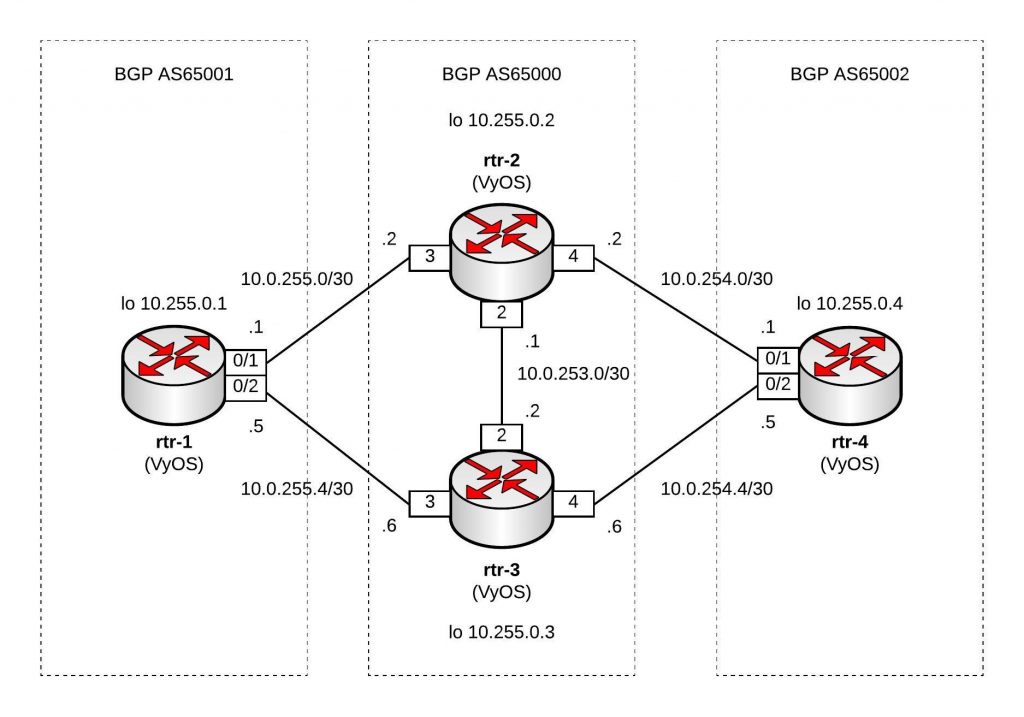
I replicated the same Vagrant topology for my Ansible Playbook for Cisco BGP Routing Topology but used VyOS instead of Cisco.

Network overview:

Here are the repositories for the Vagrant topology https://github.com/berndonline/vyos-lab-vagrant and the Ansible Playbook https://github.com/berndonline/vyos-lab-provision.

The Ansible Playbook site.yml is very simple, using the Ansible vyos_system for changing the hostname and the module vyos_config for interface and routing configuration:

---

- hosts: all

  connection: local
  user: '{{ ansible_ssh_user }}'
  gather_facts: 'no'

  roles:
    - hostname
    - interfaces
    - routing

Here is an example from host_vars rtr-1.yml:

---

hostname: rtr-1
domain_name: lab.local

loopback:
  dum0:
    alias: dummy loopback0
    address: 10.255.0.1
    mask: /32

interfaces:
  eth1:
    alias: connection rtr-2
    address: 10.0.255.1
    mask: /30

  eth2:
    alias: connection rtr-3
    address: 10.0.255.5
    mask: /30

bgp:
  asn: 65001
  neighbor:
    - {address: 10.0.255.2, remote_as: 65000}
    - {address: 10.0.255.6, remote_as: 65000}
  networks:
    - {network: 10.0.255.0, mask: /30}
    - {network: 10.0.255.4, mask: /30}
    - {network: 10.255.0.1, mask: /32}
  maxpath: 2

The template interfaces.j2 for the interface configuration:

{% if loopback is defined %}
{% for port, value in loopback.items() %}
set interfaces dummy {{ port }} address '{{ value.address }}{{ value.mask }}'
set interfaces dummy {{ port }} description '{{ value.alias }}'
{% endfor %}
{% endif %}

{% if interfaces is defined %}
{% for port, value in interfaces.items() %}
set interfaces ethernet {{ port }} address '{{ value.address }}{{ value.mask }}'
set interfaces ethernet {{ port }} description '{{ value.alias }}'
{% endfor %}
{% endif %}

This is the template routing.j2 for the routing configuration:

{% if bgp is defined %}
{% if bgp.maxpath is defined %}
set protocols bgp {{ bgp.asn }} maximum-paths ebgp '{{ bgp.maxpath }}'
{% endif %}
{% for item in bgp.neighbor %}
set protocols bgp {{ bgp.asn }} neighbor {{ item.address }} ebgp-multihop '2'
set protocols bgp {{ bgp.asn }} neighbor {{ item.address }} remote-as '{{ item.remote_as }}'
{% endfor %}
{% for item in bgp.networks %}
set protocols bgp {{ bgp.asn }} network '{{ item.network }}{{ item.mask }}'
{% endfor %}
set protocols bgp {{ bgp.asn }} parameters router-id '{{ loopback.dum0.address }}'
{% endif %}

The output of the running Ansible Playbook:

PLAY [all] *********************************************************************

TASK [hostname : write hostname and domain-name] *******************************
changed: [rtr-3]
changed: [rtr-2]
changed: [rtr-4]
changed: [rtr-1]

TASK [interfaces : write interfaces config] ************************************
changed: [rtr-4]
changed: [rtr-1]
changed: [rtr-3]
changed: [rtr-2]

TASK [routing : write routing config] ******************************************
changed: [rtr-2]
changed: [rtr-4]
changed: [rtr-3]
changed: [rtr-1]

PLAY RECAP *********************************************************************
rtr-1                      : ok=3    changed=3    unreachable=0    failed=0   
rtr-2                      : ok=3    changed=3    unreachable=0    failed=0   
rtr-3                      : ok=3    changed=3    unreachable=0    failed=0   
rtr-4                      : ok=3    changed=3    unreachable=0    failed=0   

Like in all my other Ansible Playbooks I use some kind of validation, a simple ping check vyos_check_icmp.yml to see if the configuration is correctly deployed:

---

- hosts: all

  connection: local
  user: '{{ ansible_ssh_user }}'
  gather_facts: 'no'

  tasks:
    - name: validate connection from rtr-1
      vyos_command:
        commands: 'ping {{ item }} count 4'
      when: "'rtr-1' in inventory_hostname"
      with_items:
        - '10.0.255.2'
        - '10.0.255.6'

    - name: validate connection from rtr-2
      vyos_command:
        commands: 'ping {{ item }} count 4'
      when: "'rtr-2' in inventory_hostname"
      with_items:
        - '10.0.255.1'
        - '10.0.254.1'
        - '10.0.253.2'
...

The output of the icmp validation Playbook:

PLAY [all] *********************************************************************

TASK [validate connection from rtr-1] ******************************************
skipping: [rtr-3] => (item=10.0.255.2) 
skipping: [rtr-3] => (item=10.0.255.6) 
skipping: [rtr-2] => (item=10.0.255.2) 
skipping: [rtr-2] => (item=10.0.255.6) 
skipping: [rtr-4] => (item=10.0.255.2) 
skipping: [rtr-4] => (item=10.0.255.6) 
ok: [rtr-1] => (item=10.0.255.2)
ok: [rtr-1] => (item=10.0.255.6)

TASK [validate connection from rtr-2] ******************************************
skipping: [rtr-3] => (item=10.0.255.1) 
skipping: [rtr-3] => (item=10.0.254.1) 
skipping: [rtr-1] => (item=10.0.255.1) 
skipping: [rtr-3] => (item=10.0.253.2) 
skipping: [rtr-1] => (item=10.0.254.1) 
skipping: [rtr-1] => (item=10.0.253.2) 
skipping: [rtr-4] => (item=10.0.255.1) 
skipping: [rtr-4] => (item=10.0.254.1) 
skipping: [rtr-4] => (item=10.0.253.2) 
ok: [rtr-2] => (item=10.0.255.1)
ok: [rtr-2] => (item=10.0.254.1)
ok: [rtr-2] => (item=10.0.253.2)

TASK [validate connection from rtr-3] ******************************************
skipping: [rtr-1] => (item=10.0.255.5) 
skipping: [rtr-1] => (item=10.0.254.5) 
skipping: [rtr-2] => (item=10.0.255.5) 
skipping: [rtr-1] => (item=10.0.253.1) 
skipping: [rtr-2] => (item=10.0.254.5) 
skipping: [rtr-2] => (item=10.0.253.1) 
skipping: [rtr-4] => (item=10.0.255.5) 
skipping: [rtr-4] => (item=10.0.254.5) 
skipping: [rtr-4] => (item=10.0.253.1) 
ok: [rtr-3] => (item=10.0.255.5)
ok: [rtr-3] => (item=10.0.254.5)
ok: [rtr-3] => (item=10.0.253.1)

TASK [validate connection from rtr-4] ******************************************
skipping: [rtr-3] => (item=10.0.254.2) 
skipping: [rtr-3] => (item=10.0.254.6) 
skipping: [rtr-1] => (item=10.0.254.2) 
skipping: [rtr-1] => (item=10.0.254.6) 
skipping: [rtr-2] => (item=10.0.254.2) 
skipping: [rtr-2] => (item=10.0.254.6) 
ok: [rtr-4] => (item=10.0.254.2)
ok: [rtr-4] => (item=10.0.254.6)

TASK [validate bgp connection from rtr-1] **************************************
skipping: [rtr-3] => (item=10.255.0.4) 
skipping: [rtr-2] => (item=10.255.0.4) 
skipping: [rtr-4] => (item=10.255.0.4) 
ok: [rtr-1] => (item=10.255.0.4)

TASK [validate bgp connection from rtr-4] **************************************
skipping: [rtr-3] => (item=10.255.0.1) 
skipping: [rtr-1] => (item=10.255.0.1) 
skipping: [rtr-2] => (item=10.255.0.1) 
ok: [rtr-4] => (item=10.255.0.1)

PLAY RECAP *********************************************************************
rtr-1                      : ok=2    changed=0    unreachable=0    failed=0   
rtr-2                      : ok=1    changed=0    unreachable=0    failed=0   
rtr-3                      : ok=1    changed=0    unreachable=0    failed=0   
rtr-4                      : ok=2    changed=0    unreachable=0    failed=0   

As you see, the configuration is successfully deployed and BGP connectivity between the nodes.

Leave a comment